Discover the software
The software interface is easy to use. It is divided into three main sections:
- Top bar: groups together the essential functions of the software
- Sidebar: displays the 3D models imported into the software and the data hierarchy
- Viewport: 3D representation of the models and direct interaction with them
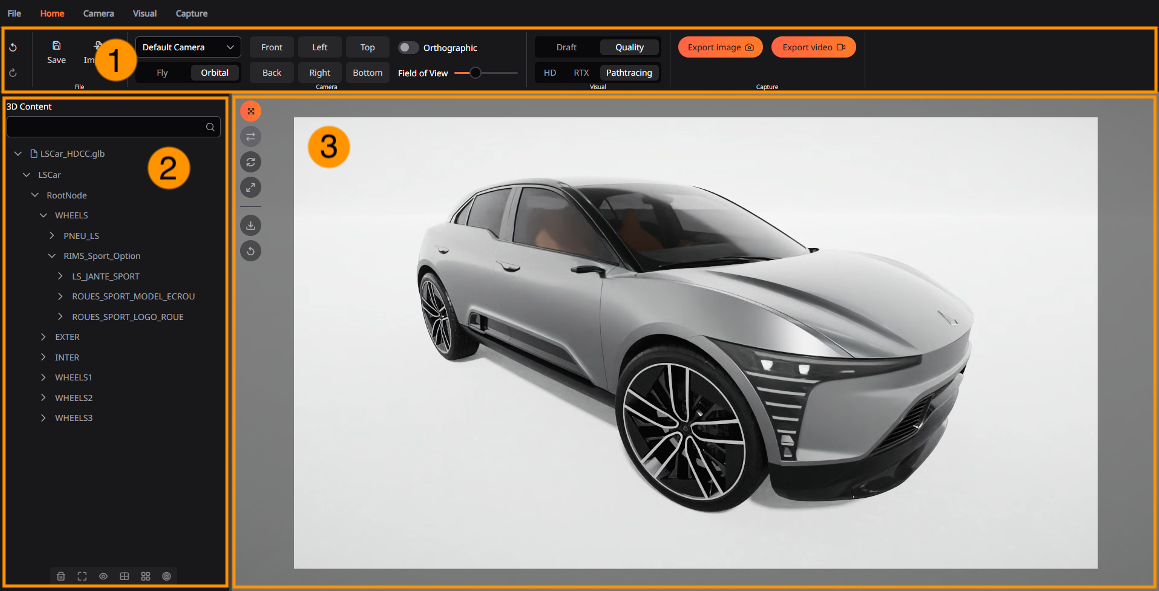
Top Bar
The top bar groups the main features of the software. It’s divided into five tabs. You can find below the detailed features available in each tab.
Note: available feature could change depending on your license type.
Files: manage project and import data

- Undo/Redo: cancel previous action
- New: create a new project
- Open: open an existing project
- Save: Save the current state of a project
- Save as: Create a project save and name it.
- Import 3D: Import 3D models
- Website: open the software website to find documentation and guide
- Import CSV: Import CSV files to create a list of models and manage their visibility
Home: a selection of useful features

- Open: open an existing project
- Save: Save the current state of a project
- Import 3D: Import 3D models
- Choose camera source and type
- Move camera to predefined position
- Switch camera mode orthographic/perspective
- Change the value of the field of view
- Change rendering quality and pipeline
- Export an image
- Record a video
Camera: manage camera settings

- Choose camera source and type
- Move camera to predefined position
- Switch camera mode orthographic/perspective
- Change the value of the field of view
- Activate depth of field
Visual: adapt the visual rendering

- Display grid lines to align your product
- Change 3D environment
- Change rendering quality and pipeline
- Switch exterior / interior predefine lighting
- Adapt exposure
- Change material rendering
- Choose a base material color
Capture: export medias

- Choose image export resolution
- Change default media save folder
- Activate transparency around the product
- Export an image
- Choose video export resolution
- Choose video export framerate
- Record a video
Sidebar
The sidebar on the left displays a hierarchy of the imported models and allow to organize those models into groups.
The sidebar is composed by:
- Name of the saved project
- Search bar to filter the list of models
- List and display hierarchy of models
- Tools
- Delete selected model
- Isolate selected model (hide the others)
- Hide selected model
- Group models together
- Ungroup models together
- Focus the camera on the selected model
Viewport
The viewport is an area where models are displayed in 3D. In this area you can manipulate the camera with your mouse to look around the product.
- Hold mouse left click to move the camera
- Use mouse wheel to change the zoom value
In the top left corner of the viewport the transform menu holds a selection of tools to move the models. Here are the available tools:
- Move 3D element: move in X/Y/Z axis
- Rotate 3D element: rotate on X/Y/Z axis
- Switch reference: between world/product
- Snap to ground
- Reset position: to initial imported position