Materials rendering
Lumina Studio is designed to use ready-for-production assets, with assigned materials. Any material adjustments must be done before importing the models into the software. However, several straightforward functions make it easy to change material rendering, enabling the creation of visuals suited for educational or technical purposes.
In order to change the materials rendering, select the model and choose the rendering type in the “Visual” tab.
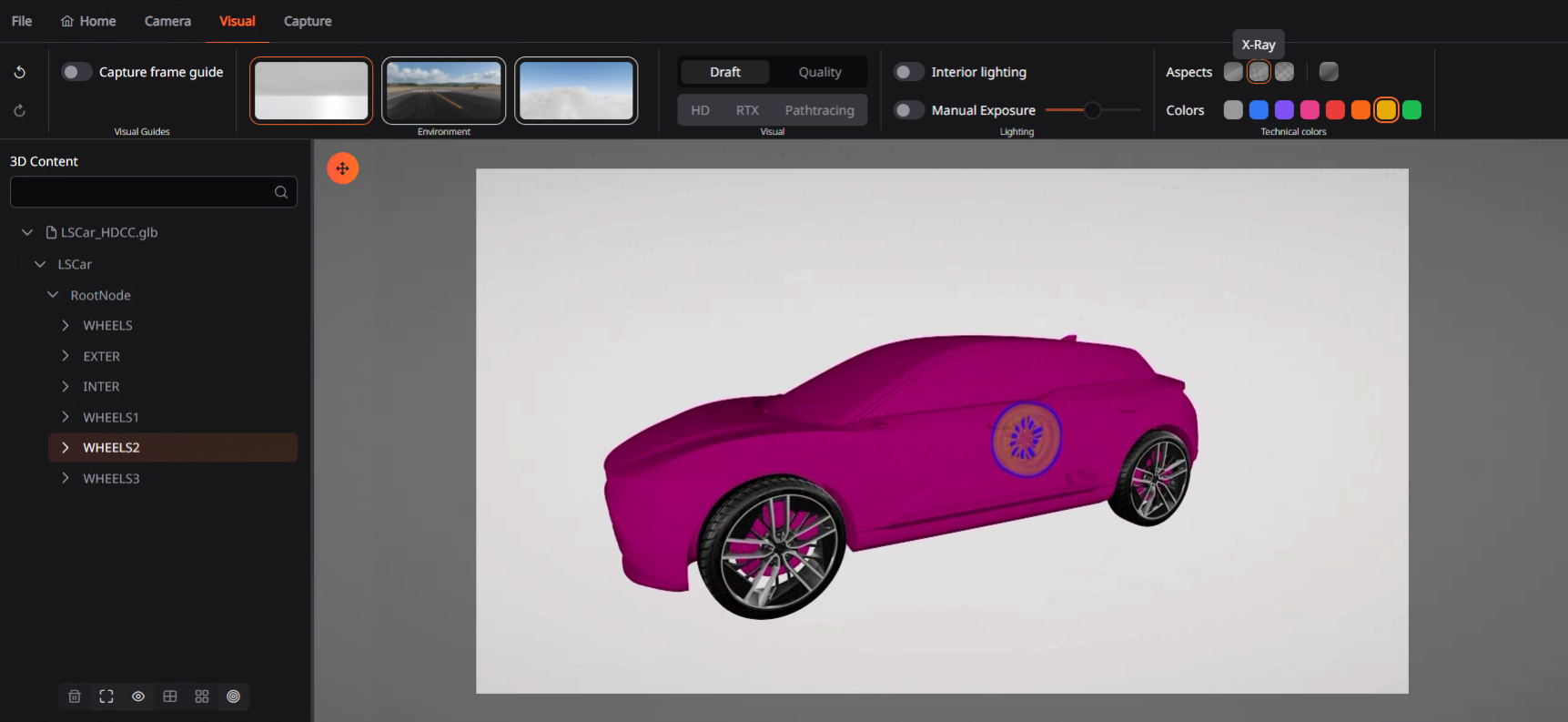
Material Preview
The material preview displays the models as it has been prepared before importing them into the software.
Solid color
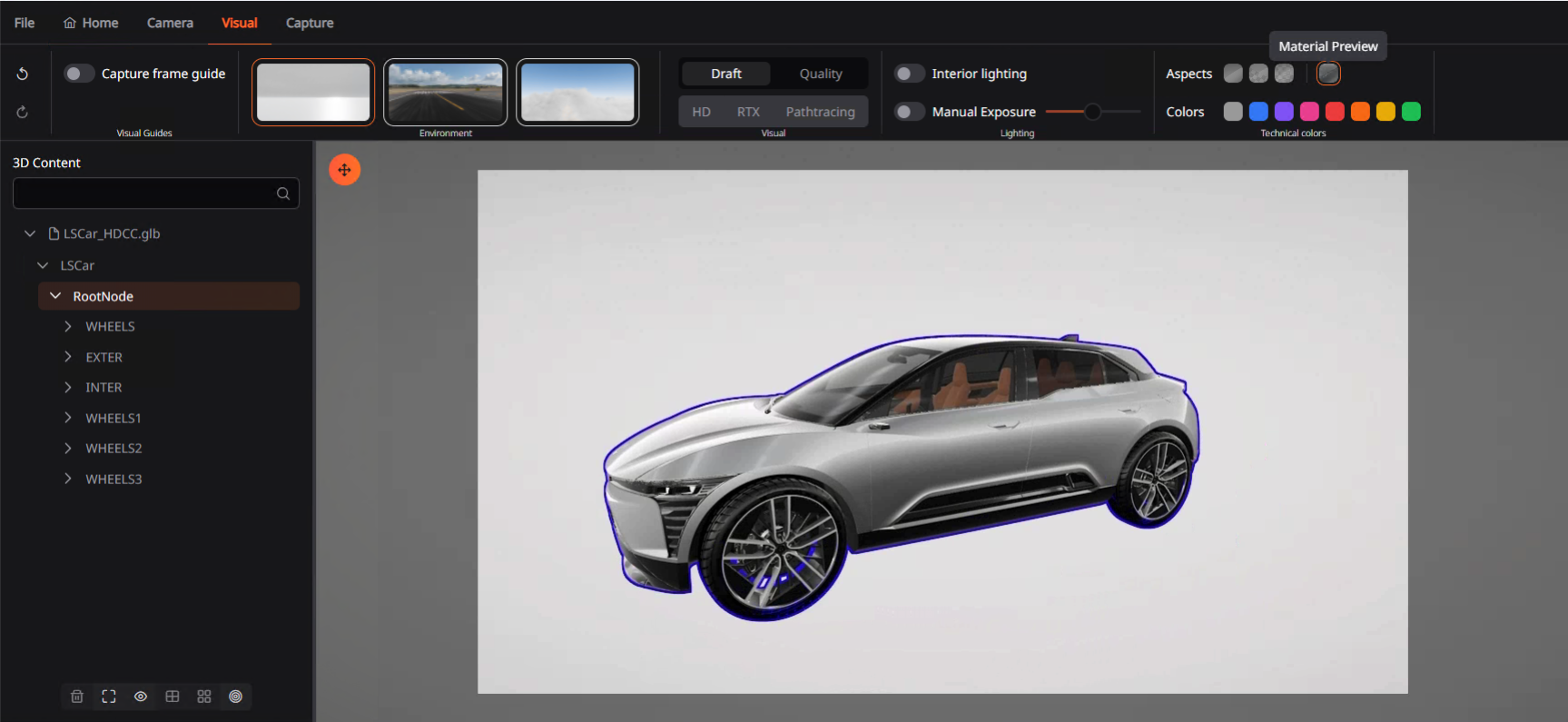
You can replace the default materials with a solid color. A selection of eight colors is available to choose from.
In the example below, the solid color green is applied to the exterior of the LS CAR.
Transparent
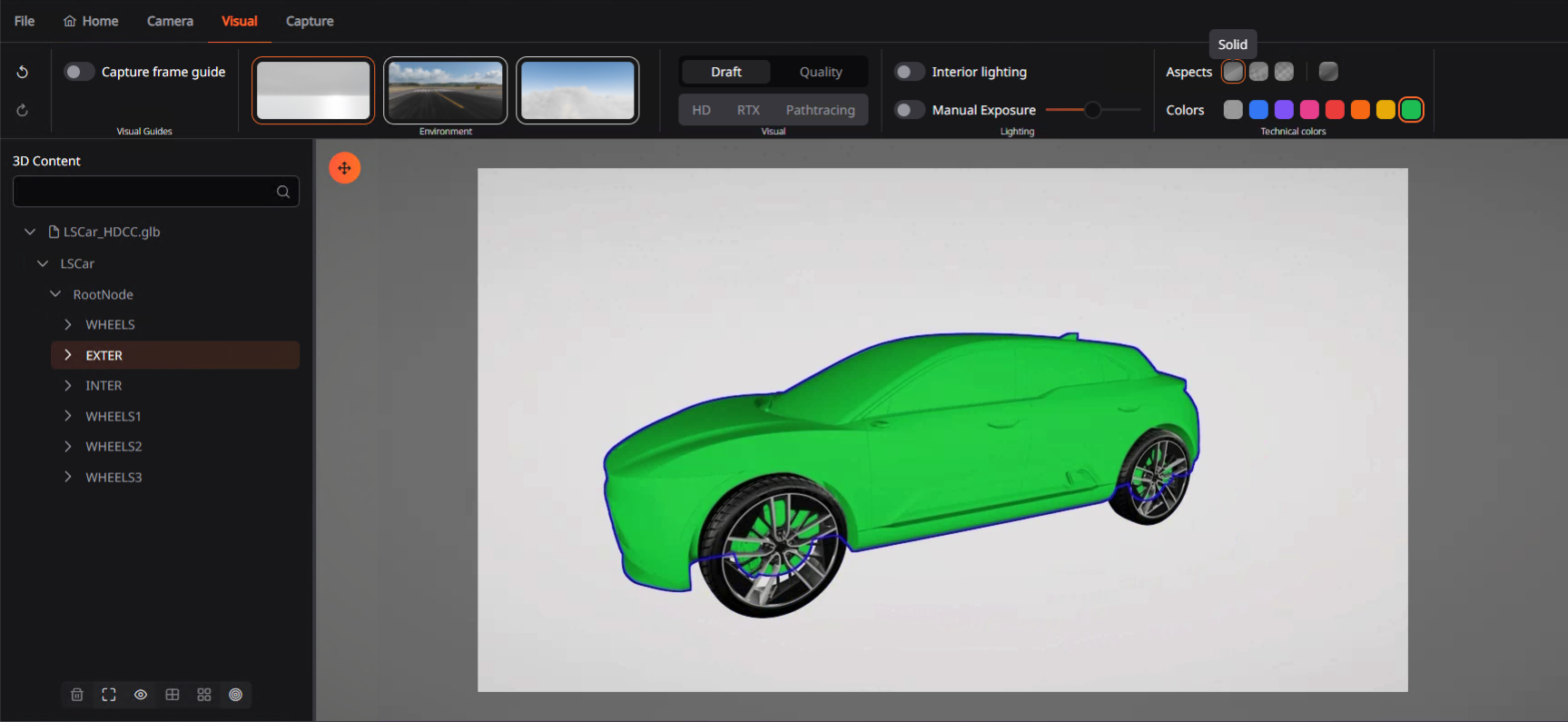
You can make the material transparent. Everything behind it will be seen.
In the example below, the exterior of the LS CAR is transparent.
X-ray
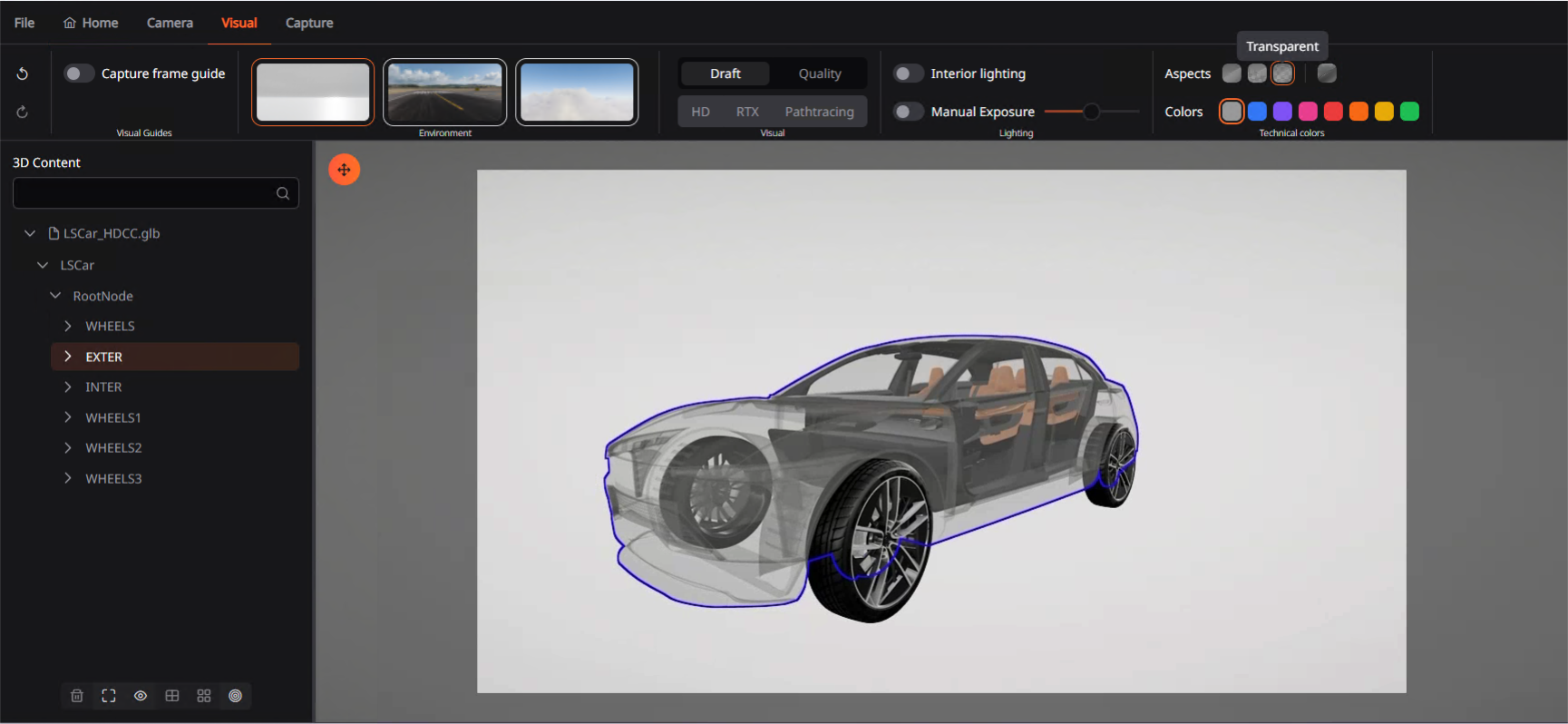
You can make a model or sub-model visible at all time, even if there is a model in front of it by applying the “X-Ray” mode.
In the example below, the exterior of the LS CAR is in solid purple. The rear-right wheel is visible with X-Ray mode.