Project management
A project saves the status and settings of the software. Links to 3D models are saved but 3D models are not embedded in the project files to reduce its weight to the lowest possible.
Create a project
To create a new project, click on “New project” in the “File” tab of the top bar, or use the shortcut Ctrl+N
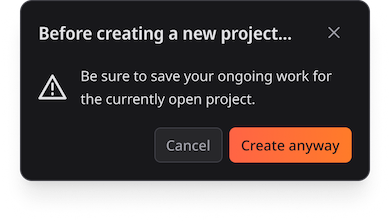
When you start a new project while another one is already open, a dialog box is displayed reminding you to save your current work. Click on “Create anyway” to create the project.
Save the project
To save the state of your project, click on “Save” in the top bar (Home or File) or use the Ctrl+S shortcut.
If it’s the first save state of the project, you’ll need to define a name and choose where to save the project on your computer. Once it’s saved, the project’s name is displayed on the top of the sidebar.
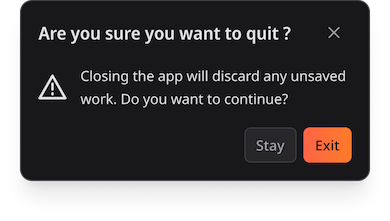
When you exit the application, a confirmation message warns you that any unsaved changes will be lost.
Create a version of the project
In order to create a new version of the project click on “Save as” in the top bar “File” or use the Ctrl+Shift+S shortcut. A new name can be defined.
Open a project
A saved project can be open by clicking on “Open” in the top bar “File” or use the Ctrl+O shortcut. Then select the project file on your computer and open it.
You can also double-click on the project file to open it in the software.
Share a project
You can share a project file to a colleague or client. In order to open this project, the new user will need to have the source 3D models stored in the same source folder as your initial project, otherwise the links to the models will be broken.