Organize models
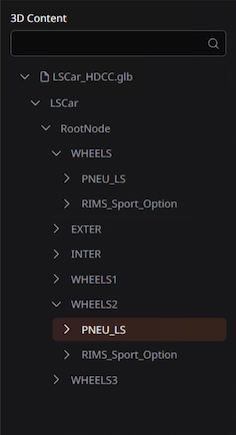
Imported 3D models are listed in a hierarchy in the sidebar. On the left of the nodes’ names, arrows allow to expand the models and explore the various levels of sub-nodes.
Search bar
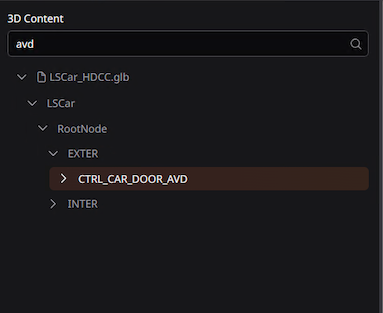
List of models can be filtered using the search bar. Just type the name of the model. Subparts of the model can also be searched.
Group models
Individual models can be group together to facilitate manipulation. Select the models and click on the “Group” button on the bottom of the sidebar or use Ctrl+G shortcut.
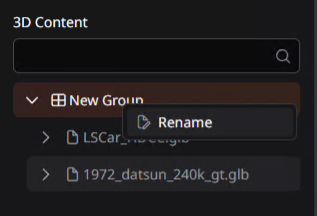
A new group is created with the models inside. New groups are named “new group” and can be renamed by right-clicking on the group and choose “Rename”. Type the name and hit enter to validate.
A group can be ungrouped. Select the group and click on the “ungroup” button on the bottom of the sidebar or use the shortcut Ctrl+Shift+G
Delete models
3D models can be deleted and removed from the project. Select the models and use the “Delete” button on the bottom of the sidebar or use the “delete” key on your keyboard.
Deleted assets can be retrieved with the undo action Ctrl+Z.
Hide models
3D models can be hidden in the viewport and kept in the project. Select the models and use the “Hide” button on the bottom of the sidebar or use the H
Use the same button or key to show a hidden model.
Isolate
The isolate function hides all models except the one that is currently selected. To isolate a model, select it and use the “isolate” button on the bottom of the sidebar or use I
Focus
The focus function centers the camera on the selected model. Use the “focus” button or use F