Add Collisions
Physicalize a part means adding a rigid body and a joint to it. Interaction between two rigid bodies can be set for collision or interference detection.
Configuring Rigid Bodies
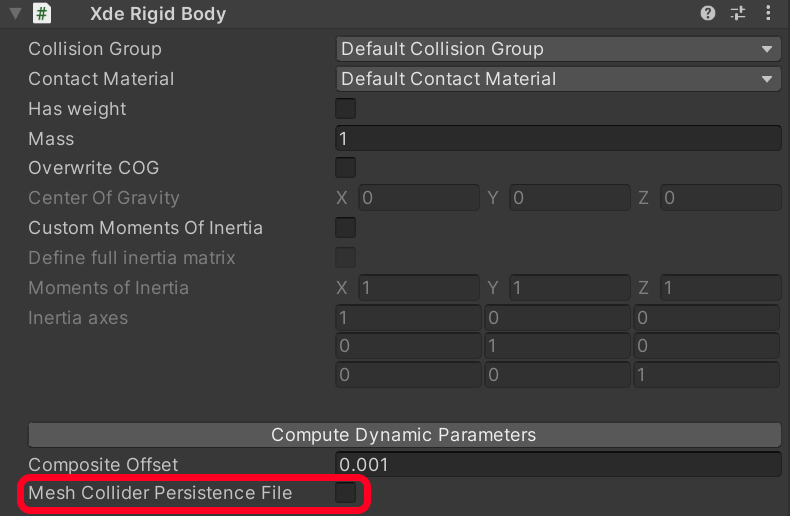
You can configure properties of a rigid body in the inspector tab in the XdeRigidBody component :
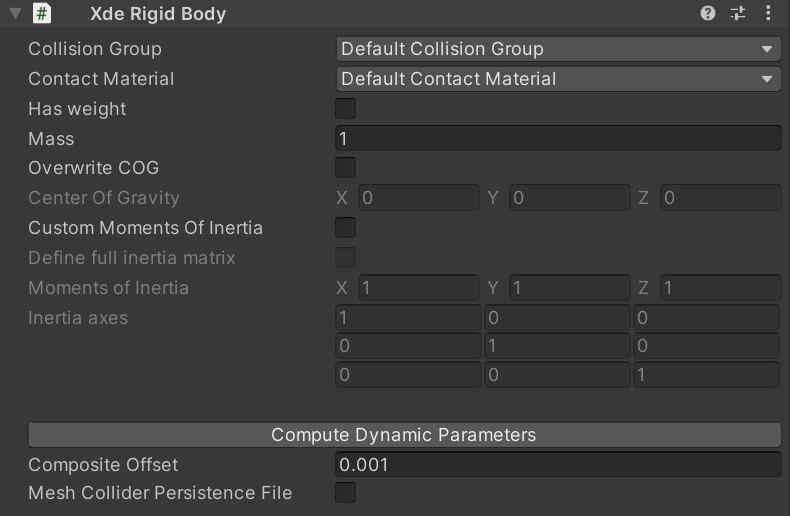
- Has weight: defines whether of not the object is affected by gravity
- Mass: the mass of the object in kg
- Overwrite COG: by default, the center of gravity of the object is located at its center.
This can be changed with this property - Custom Moment of Inertia: to manually define the matrix of inertia
- Composite Offset
Set up collisions
One of the key feature of INTERACT's XDE Physics Engine lies in its precise collision detection.
Using and configuring collision detection is really easy, you just have to set how groups of objects behave when a collision occurs.
In INTERACT, the notion of ‘Group of objects’ is called ‘Collision Groups’. (ex: the Collision Group ‘Mobile’ contains all the mobile objects in the scene).
It is important to carefully define your Collision Groups in order to optimize the collision detection.
Assign a collision group
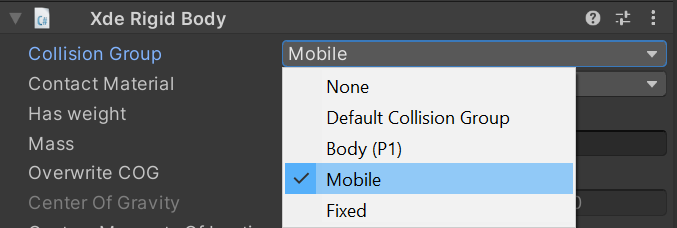
- To assign a RigidBody to a particular Collision Group: Use the XdeRigidBody component in the inspector tab and select the Collision Group you want in the dropdown list.
Create a new collision group
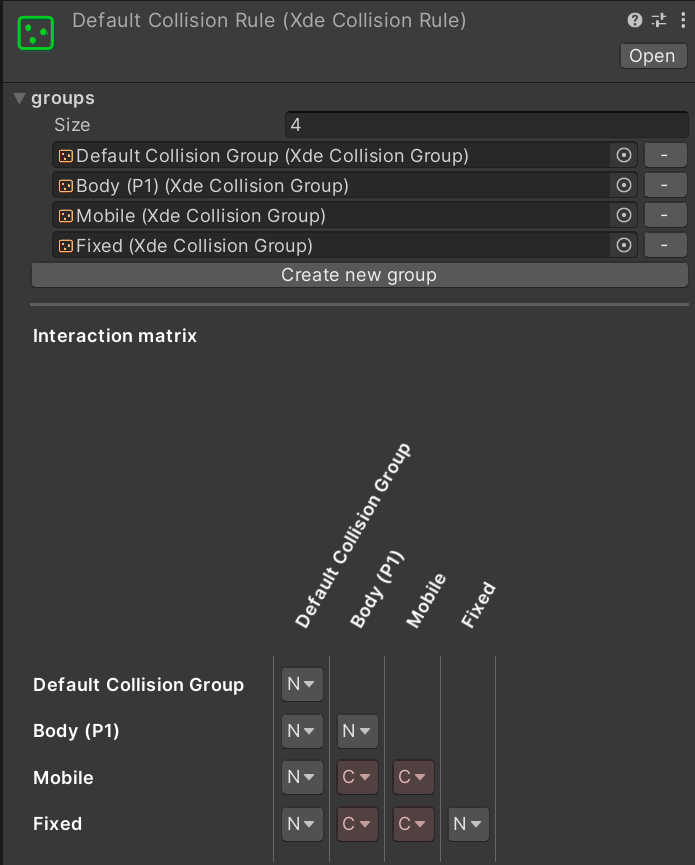
- If you want to define a new Collision Group: from the main menu use INTERACT > Physics > Show Collision Matrix. This will open the active Default Collision Rule (XdeCollisionRule). Click on the Create new group button and name the New Collision Group asset accordingly.
Edit collision matrix
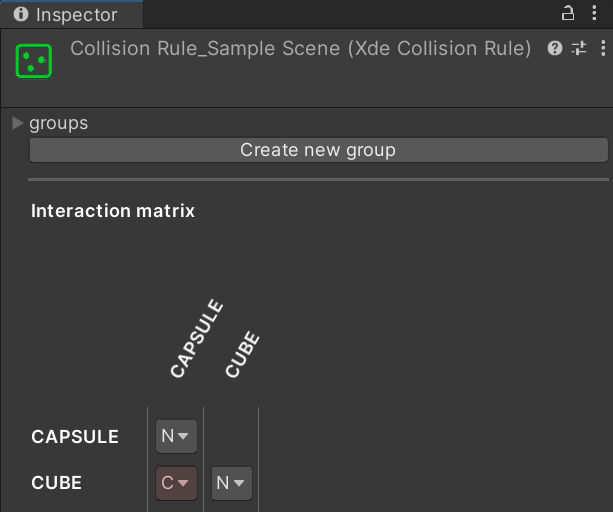
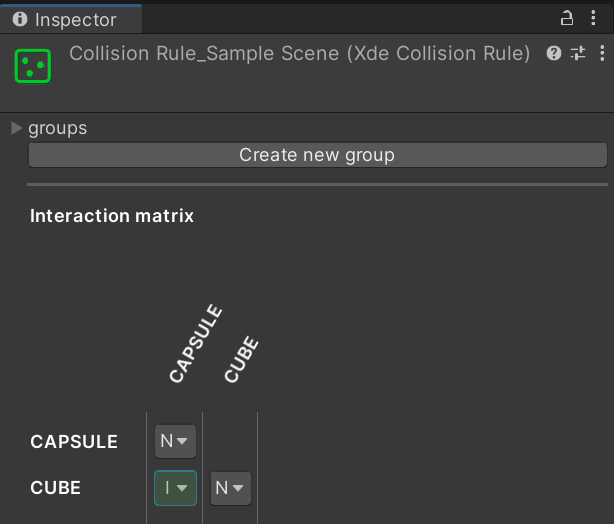
The Collision Matrix allows you to define the possible interactions between Collision Groups. It is presented in the form of a matrix. At the intersection of 2 Collision Groups (Rows and Columns), you can select between three types of interaction:
- None ( N ): no collision will be monitored between these two Collision Groups
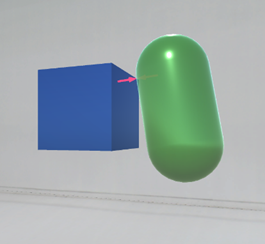
- Contact ( C ): the contact detection will be activated.
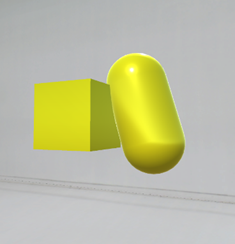
- Interference ( I ): the two objects will be allowed to penetrate each other but the interference will be monitored.
To display the collision matrix, from the main menu use INTERACT > Physics > Show Collision Matrix. For collision monitoring and contact visualization, see Collision Monitoring.
Ex: Collision between a capsule and a cube
Ex: Interference between a capsule and a cube
Improve pre-processing time
To improve launch time for your simulation, you can serialize collision pre-computation into dedicated assets. On the XdeRigidbody component, enable the Mesh Collider persistence file option and click Generate persistence data. If you later modify the mesh geometry or physics parameters, you'll need to regenerate this file.
Not allowed to access triangles/indices on mesh
If you encounter the following error when starting the simulation Not allowed to access triangles/indices on mesh (isReadable is false; Read/Write must be enabled in import settings), double-check that your model has the Read/Write flag enabled on your Model tab.
Collisions not detected
If objects pass through each other or contact arrows do not appear, check that the objects have the expected collision groups and that their pair is set to Contact in the Collision Matrix. For arrows, also verify that XdeCollisionGroupsMonitor is enabled, its Type includes contact monitoring, and its Filter includes the relevant body or group pair.
A fast-moving object can travel farther than the collision search distance during one timestep and miss another rigidbody. Review the advanced collision parameters, especially LMD Max and the Time Step Control Mode.