How to grab a part
Set a part as grabbable
Every physicalized object can be manipulated using your virtual hands easily.
To do so, you can right-click your GameObject in the Unity hierarchy, and select INTERACT > Scenarize > Make part grabbable.
This will add an Xde Asb Part component.
Every physicalized part that has an Assembly part component will be interactable in your virtual scene.

 Physicalized parts are now grabbable
Parts are made grabbable during physicalization as we consider most of these parts aim to be manipulated.
If you don't want a part to be grabbable you can disable the Grabbable property in the XdeAsbPart component.
It will still follow the physical properties of your object. Thus, you can manipulate a lever and a wheel while respecting the kinematics. Weight is also considered. If your object is too heavy, you won't be able to lift it and your fingers will slip around the object.
Grabbing with an HMD vs. the desktop player
-
With an HMD, hold the trigger to grab the object. If you want your virtual fingers to react with the grabbable object instead, set up collisions between the player and your object.
-
With the runtime desktop player, click and hold on a part to grab it. You can then drag it around using a virtual elastic interaction.
Manipulate a part
You can manipulate a grabbable part either with a controller or with finger tracking, whether built into your headset or provided by a dedicated device such as Leap Motion or Manus VR.
Grabbable objects can be physicalized, in that case you need to activate the collisions between your hand and the object or not.
How to customize grasping behaviour
When using grasping an object in Interact, virtual couplings will be created between your part and your virtual hands. These coupling act quite similarly to spring attached from your fingers to your object.
This work both ways: grabbed part will be lifted by your fingers, but will also incur some force to pull your fingers.
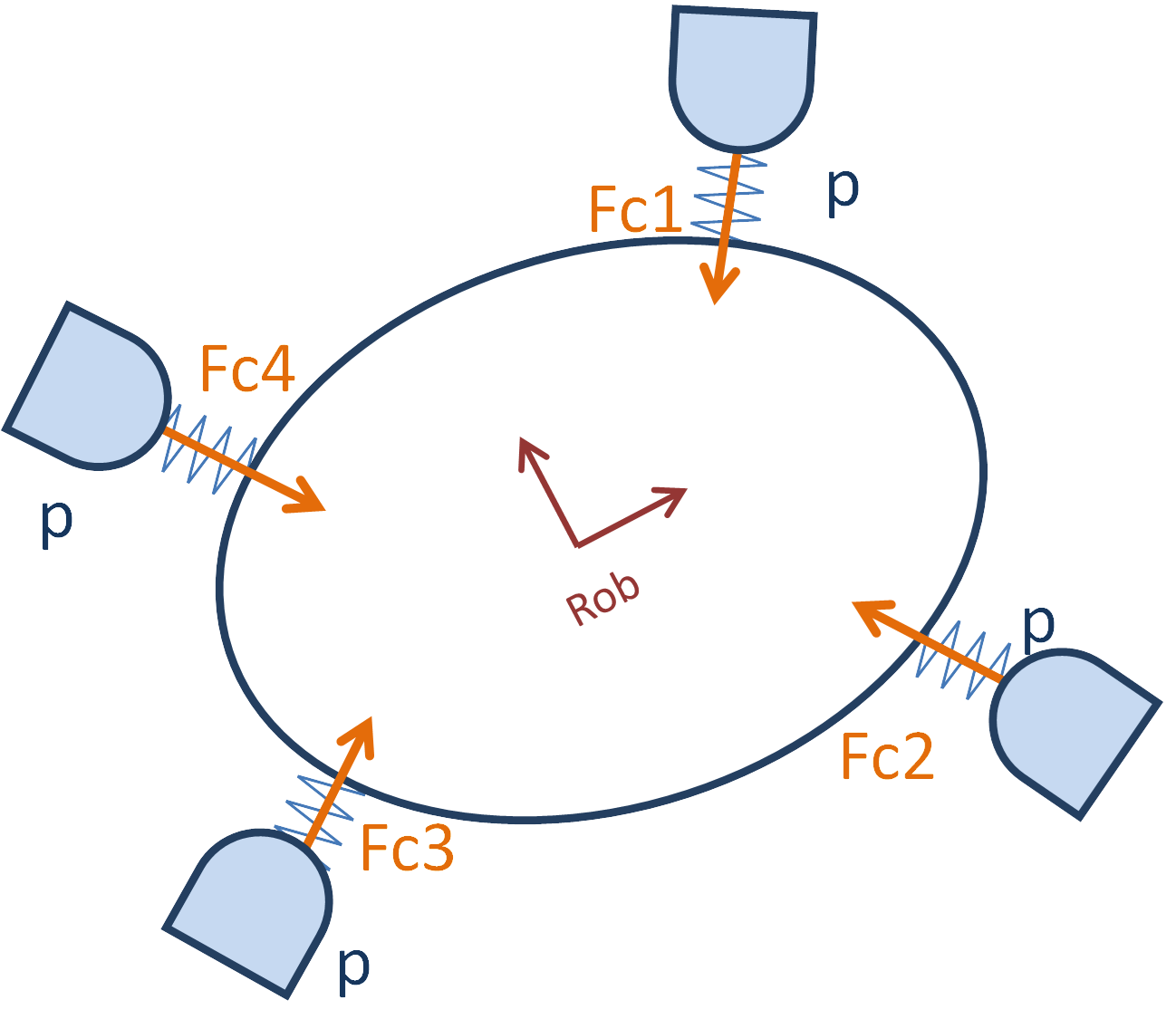
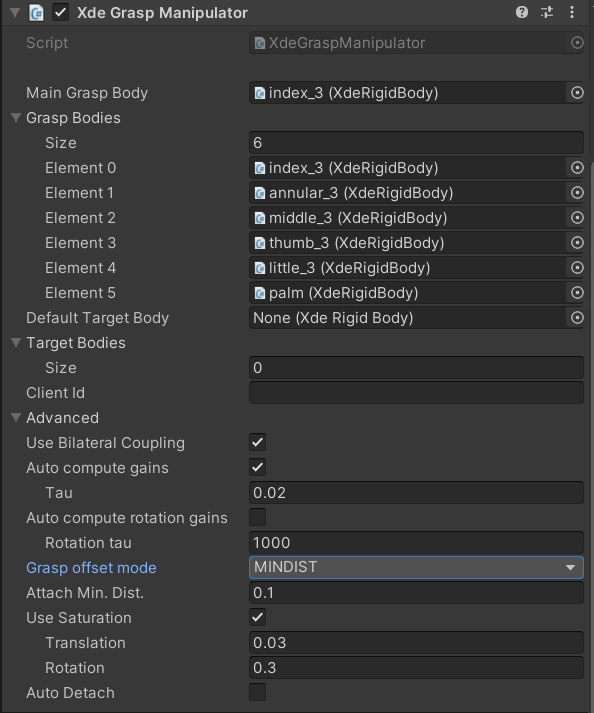
These advanced parameters can be tuned in XdeGraspManipulator component. This component is automatically added and is located in your player hierarchy.
-
Grasp bodies: These bodies are the physicalized fingers in your virtual hands considered for grasping. By default, the whole hand will be considered.
If you want to manipulate tiny parts, like screws, we usually only use three fingers to do so. You can customize this grasp bodies list to only include to increase manipulation fidelity.
-
Target bodies: This is automatically filled when you start your simulation. Every physicalized object with an Asb Part component will be added. However, you can modify this list at runtime to prevent or allow an object to be grabbed.
-
Tau: This parameter is a response time in seconds for your grasping system. If you want your player to be stronger, you can decrease this value. By having a smaller value, your coupling will try to reach desired position faster, and will use more force to do so. On the contrary, you can increase this value for more simulation stability.
-
Attach min. distance: This parameter is in meters and will tune the maximum distance where we will stop trying to attach to the grabbed body.
Grasping strategies
Drop an object if it's too heavy
When you use your controller to grasp an object in a virtual scene, the weight and inertia of the object will be simulated. However, since you can still move freely in your real-world environment, there may be a discrepancy between the position of your real hand and the position of your virtual hand when you are holding a heavy object.
In such cases, it may be appropriate to drop the object so that the virtual hand can move freely to match the position of the real hand.
To configure this behavior, you can use the XdeGraspManipulator component. This component allows you to adjust the AutoDetach property and set a threshold that triggers the Ungrasp event. When the distance between the virtual hand and the real hand exceeds this threshold, any grasped object will be dropped automatically.
Disabling collisions when hands get stuck
In virtual simulations, it is possible for hands to get stuck in the virtual environment, leading to a discrepancy between the position of the virtual hands and the real hands. To address this issue, a fallback strategy can be set up to temporarily disable collisions between the hands and the CAD model, allowing the virtual hand to move back freely to the position of the real hand. Once the virtual hand has reached the real hand position, collisions will be reactivated.
To set up this behavior, the XdeHandRecoverer component can be used. The distance threshold that triggers the event can be customized to suit your needs.
Note
It is important to set the distance threshold to be greater than the AutoDetach behavior if you are using the previous strategy.
Disabling hand tracking when controllers are too far
When your controller is too far from your HMD, your virtual hand is detached from the tracked controller and set to a hand rest pose. This prevent your arm from growing indefinitely if you place controllers on your desk and walk away with your HMD on.
To set up this behavior, the XdeAsbHandsSmartAttach component can be used. The distance threshold (between Head Node and Skeleton Node) that triggers the event can be customized to suit your needs.
Prevent a released part from drifting away
When a grabbed part is released, small residual velocities or an imprecise final placement can make it keep sliding, rotating or falling instead of staying exactly where you left it. To avoid this, INTERACT can automatically weld the part back in place as soon as it is released, and unweld it again the next time it is grasped.
Two mechanisms provide this, and they don't apply the same way:
- Per-part: add the UnweldWhenGrasped component directly on the specific part (next to its XdeRigidBody) that should behave this way. It only affects that one part: it unwelds the part as soon as any hand grasps it, and re-welds it once the last hand has released it (two-handed is tracked, so the part is only re-welded once every hand has let go).
- Global, on the player: enable Weld object to void when detached on the XdeAsbOperatorGraspManipulator component, in your player hierarchy. This is a single switch for that operator: once enabled, every part grasped and released through it is welded to void, there is no per-part opt-in. "To void" means the part is welded with no parent, so it simply stays fixed wherever it was released instead of being attached to a specific body.
Interaction with Weld at Start
Weld at start only defines the joint's initial pose. Once a part has gone through a grasp/release cycle, it is re-welded wherever it was last released, not back to its original weld at start pose.
Impact on collision reaction
A welded joint is fully constrained, like a fixed joint. A part welded back in place after release will hold its position even if something else collides into it: contacts are still detected and reported (see Detecting Collision Events), but the welded joint no longer reacts to the resulting forces.
Interaction with Dismountable
When weld to void is enabled, grasping a welded part only unwelds it automatically if the Dismountable property of its XdeAsbPart is enabled. If Dismountable is disabled, weld to void becomes effectively permanent: the part stays welded even when grasped again.
UnweldWhenGrasped does not check Dismountable at all: being a lower-level, per-part script, it always unwelds on grasp regardless of the property's value.