
Customize your Scenario
Assembly nodes
Several nodes can be used to describe your assembly process in the Scenario window. To open it, go to INTERACT > Scenarize > Show scenario graph.
Placing
The placing step gives target positions (Xde Asb Keypoint) to assembly parts (Xde Asb Part).
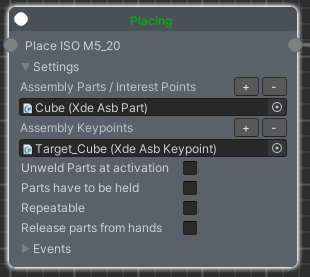
- Unweld Parts at activation: If the assembly part used in this step is welded before this placing step, ticking this option will unweld it at activation.
- Parts have to be held: The part must be grabbed when it is placed on the target for this step to validate. For example, if you just "push" the part into place using collisions, without holding it, the placing step won't validate.
-
Repeatable: By default, once a step's part(s) reach their keypoint(s), the step stays completed forever. Enabling Repeatable changes this: the step keeps monitoring its placed parts. If a part moves out of its keypoint's position/rotation tolerance, the step becomes "uncompleted" again, and any step depending on it deactivates too. The part can then be placed back on the keypoint to complete the step again.
Repeatable parts usually need to be Dismountable
Repeatable only changes when the step counts as complete. On its own, it does not let the user take the part off again.
This matters when the keypoint welds the part — either through Weld (see Welding and alignment) or through "weld to void". In that case, grasping the part only unwelds it: the user can pull it away from the keypoint only if Dismountable is enabled on its XdeAsbPart. Without it, the part stays welded in place even while the step is active again, and the step can never be uncompleted through user interaction.
Unweld Parts at activation does not solve this on its own. It only unwelds the part when the step goes from inactive back to active, for example because one of its dependencies got undone. It does not fire just because Repeatable marked the step uncompleted while the step was already active.
In short:
- Enable Dismountable on the part so the user can physically remove it again.
- Also enable Unweld Parts at activation if a part welded during a previous pass should start unwelded again the next time this step (re)activates.
-
Release parts from hands: Automatically releases the part from the user's hand(s) as soon as it is placed on its keypoint.
Step

The assembly step doesn't perform any action by itself. It is useful for creating a blocking dependency: the step only completes when its Complete() function is called from outside the scenario, letting the scenario continue.
Tempo

The tempo step creates a delay between two steps. It is useful for adding a wait between two Robot Move steps.
- Tempo: Time to wait, in seconds, before the step is completed.
Robot Move
 An assembly step represents one step of the assembly process. Once activated, it stays active until its required action is completed.
The Xde Asb Robot Move component (Robot Move in the scenario graph) is an assembly step that gives target positions (Xde Asb Robot Keypoint) to actuator parts (Xde Cartesian PD Coupling).
Set the properties of your actuator part according to your robot's specs.
LogicalOperator

The logical operator step performs a logical test between its dependencies to determine if it is completed or not.

Events
Every assembly node has an Events tab. It lets you change properties on other components of your game object, triggered by specific events — for example, unwelding or activating another part when a keypoint is reached.

Some events are only available on certain assembly nodes. The table below shows when each event is triggered:
| Events | Triggering action |
|---|---|
| Keypoint reached | Triggered when the assembly part reaches its target (keypoint). |
| Keypoint released | Triggered when the assembly part is released from its target (keypoint). Only applies if this step has multiple assembly parts and keypoints. |
| Part grasped | Triggered when the assembly part is grasped by the user in VR. |
| Step activated | Triggered at the beginning of this step. |
| Step completed | Triggered when this step is completed. Useful when a step has multiple keypoints, for example. |
| Step deactivated | Triggered when this step is deactivated. |
| Step uncompleted | Triggered when this step becomes uncompleted. |