Installation
Download INTERACT latest version
Click INTERACT button below to open the INTERACT download page.
Select the latest version of INTERACT according to how you create your project:
- Download INTERACT Installer and execute the setup. This will install an INTERACT Template in Unity Hub for all installed Unity versions. Run this setup again each time you install a new version of Unity. To continue, go to With Unity Hub below.
- If you prefer to add INTERACT to an existing Unity project, download the INTERACT Unity Package. To continue, go to Without Unity Hub below.
Create a project with INTERACT
With Unity Hub
Create a new Unity project from the Unity Hub using the INTERACT template. This speeds up project creation and install processes.
- In Unity Hub, click New project.
- Select a compatible Editor version. See Software.
- Select the
INTERACT Template.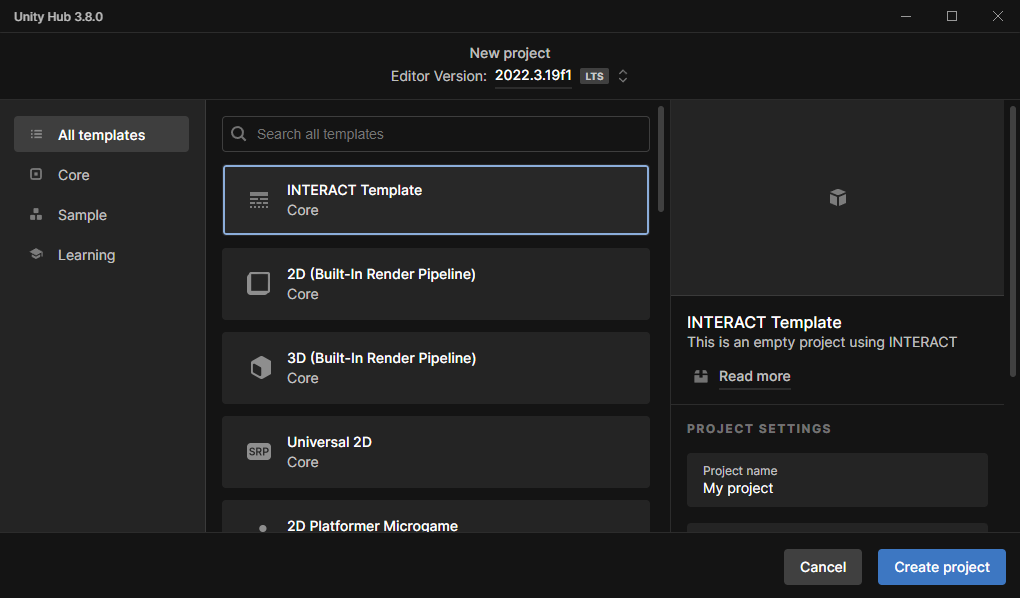
- Edit project name and location. Click on Create project when ready and wait for instructions.
- When the project re-opens, INTERACT is ready to use.
INTERACT Template is not available?
Make sure to use a compatible Unity Editor version or that you have run the INTERACT installer after Unity Editor installation.
Without Unity Hub
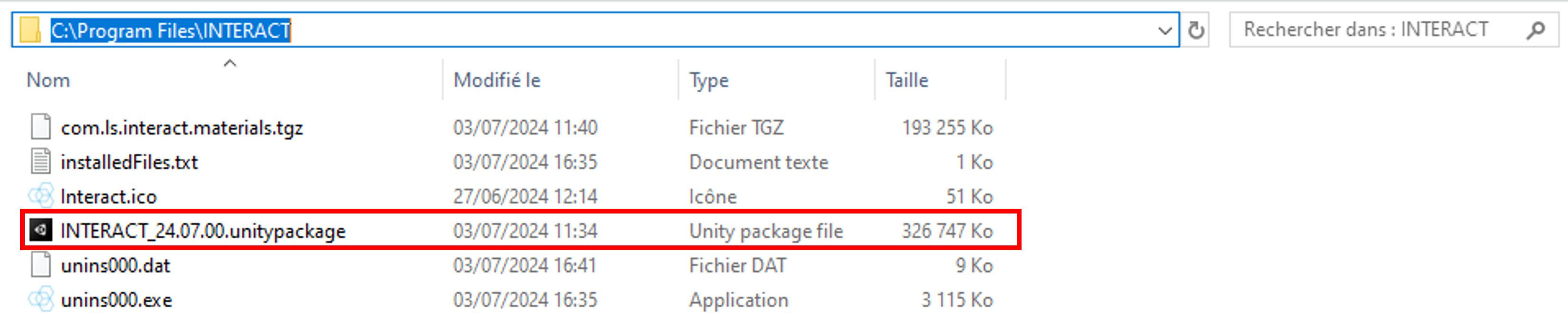
Download INTERACT *.unitypackage file, such as INTERACT_2025.03.02.unitypackage.
Installing INTERACT in an existing Unity project consists of importing this *.unitypackage.
-
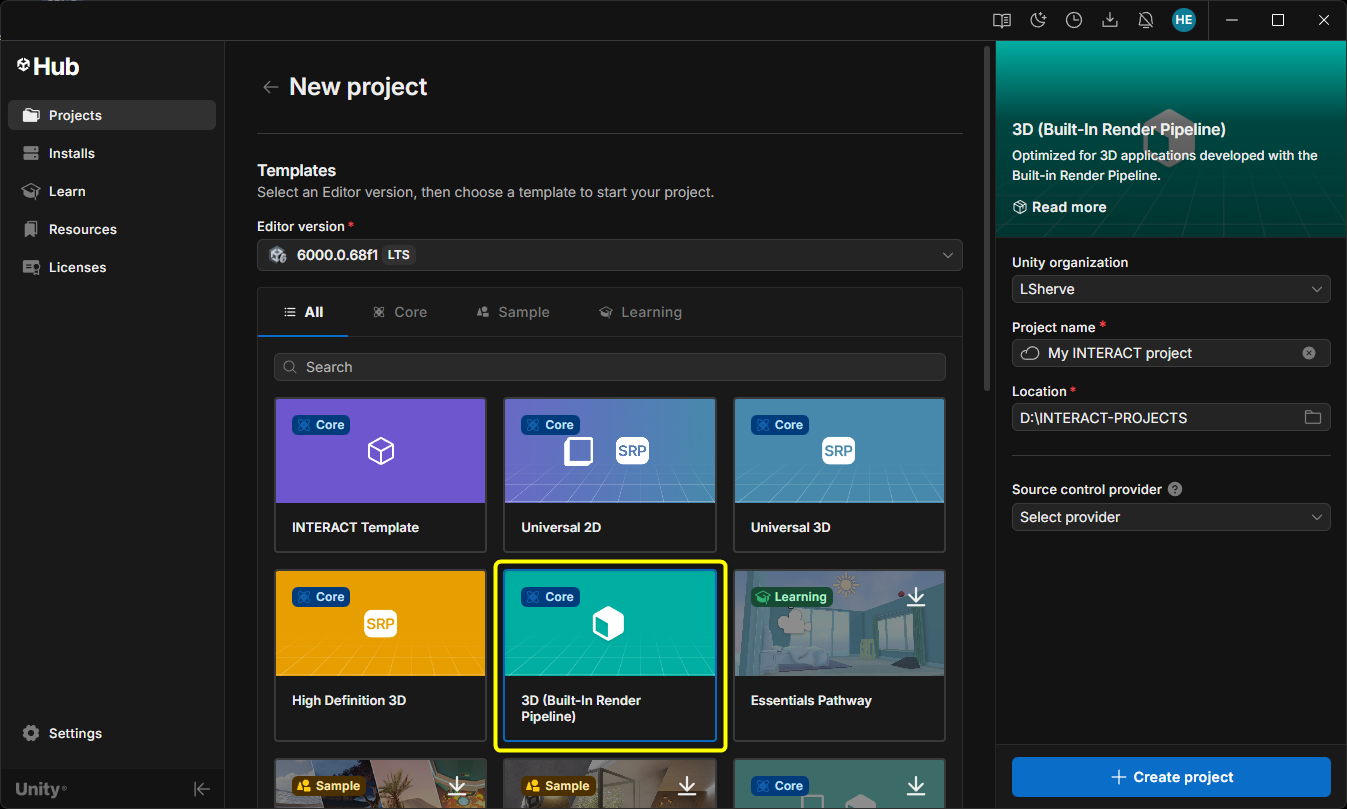
Open your Unity project based on built-in 3D Renderer Pipeline (URP or HDRP are not supported). Make sure to use a compatible Unity Editor version. See Software. If you are creating it using Unity Hub, select the corresponding 3D (Built-in Render Pipeline) template.
-
Open this Unity project.
-
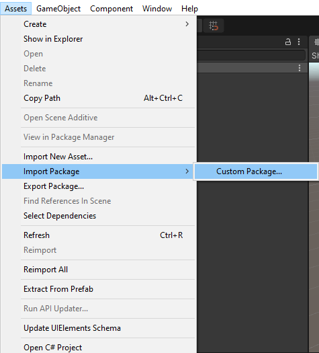
Use top menu Assets > Import Package > Custom Package...
-
Select the INTERACT_[version number].unitypackage from the files explorer file and open it. Wait while Unity prepares the package.
-
When displayed, click on Import, and wait for the package import.

-
You may be prompted to confirm a few pop-ups and some times to restart the Unity project.
-
After restarting, INTERACT is ready to use.
Activate your License
In Unity, open the embedded INTERACT License Manager from the top menu INTERACT > License Manager.
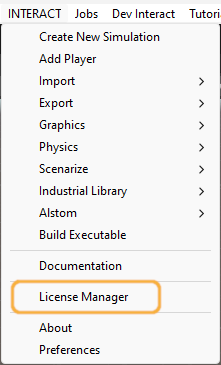
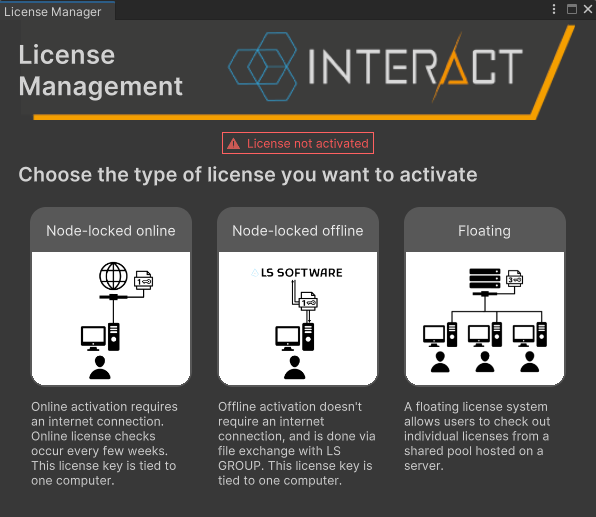
If a license is already activated and valid, information of the license (such as license owner and end date of license) are displayed. Otherwise, you will see a page prompting you to select the type of license you want to activate.
Contact support
In case of any issue with licensing, please contact us at interact-support@ls-group.fr
Node-Locked Online
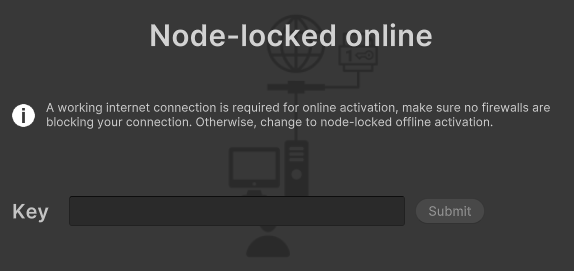
- Select Node-locked online
- Enter the license key in the Key field.
- Click on the Submit button.
Warning
If you plan to use Interact offline, do not install the license using Online process even if you temporarily have an internet access. Prefer to use Node-locked Offline installation.
Node-Locked Offline
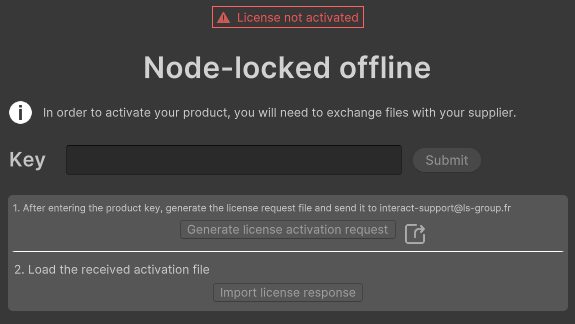
- Select Node-locked offline
- Enter the license key in the Key field.
- Click on the Submit button. The
Generate License requestandImport License responsebuttons are now active. - Click on the button
Generate License request. The application will generate a license file request, the ActivationRequest.xml file.
This file must be sent to us so we can send you the license response. You can locate the file by clicking the Open button  .
.
Drag it in the case below:
Activation widget
Drag your xml activation request file here
File loaded :
If you encounter any issue, send it by mail at interact-support@ls-group.fr
When it is received:
- Click on
Import license responsebutton. - Browse to select the ActivationResponse.xml file you received.
- Click on
Finishbutton when done.
Floating
If you have purchased a floating license for INTERACT, your IT need to install the license server managing the INTERACT license system.
To receive the package containing all the tools needed to set the server, contact us at interact-support@ls-group.fr.
Once the license server is running:
- Fill the server
IP addressandPortin the License Manager. - Click on the Submit button.