Passthrough 
Passthrough displays the real-world view from your VR headset's cameras inside the simulation, replacing the virtual environment while keeping interactive 3D content visible. This is useful for mixed-reality reviews, staying aware of your physical surroundings, or overlaying a CAD assembly on a real workspace.
When passthrough is on:
- The scene environment is hidden. Specifically any GameObject with an
EnvironmentRootcomponent. - The player's cameras render with a transparent background so the headset can composite the real-world feed.
- All other simulation content (parts, avatars, VR Menu, tools) remains visible and interactive.
Headset Requirements
A VR headset that supports OpenXR passthrough. Currently detected as supported by INTERACT:
- HTC VIVE Focus 3 and VIVE Focus Vision (through VIVE Streaming with SteamVR)
- Varjo XR-3
- Apple Vision Pro (through ALVR)
Start the simulation with passthrough
You can configure a VR Player to start the simulation with passthrough already active:
- In the Hierarchy, select your VR player (
Player_1by default). - In the Inspector, locate the Player Info component.
- Tick the XR Passthrough checkbox.
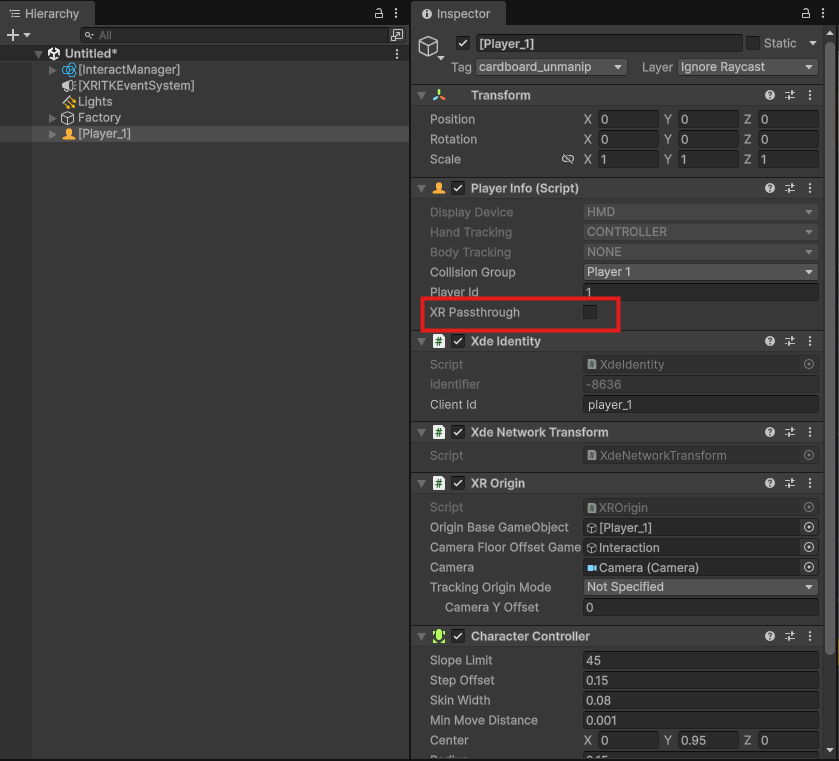
The next time you enter Play mode, the simulation starts with passthrough enabled.
Info
The XR Passthrough field is only shown on players configured with a VR Headset display device.
Toggle passthrough at runtime
When passthrough is supported by the detected headset, a dedicated button is added to the VR Menu settings.
- Open the VR Menu with the controller's Menu button.
- Open the Settings tab.
- Click the Passthrough button to toggle passthrough on or off. The icon reflects the current state.
Switching passthrough on or off during simulation preserves the state of your parts, tools and viewpoint — only the environment rendering changes.
Locomotion in passthrough
While in passthrough, the user is standing in a real physical space, so classic VR locomotion metaphors — flying across the scene or teleporting to a distant spot — do not apply. The concept of locomotion is replaced with world drag. Pushing the joystick forward pulls the scene toward you (equivalent to moving forward relative to the model); pushing back pushes it away. Teleport is not available.
Hide the runtime toggle
If you deliver a simulation where end users should not be able to switch passthrough on or off, you can hide the button from the VR Menu.
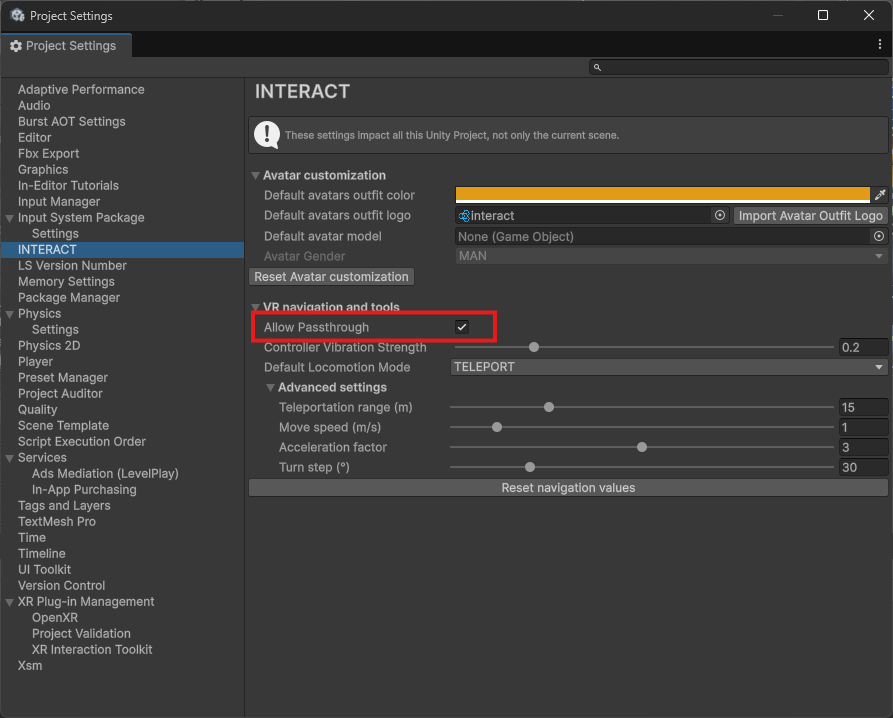
- Open Edit > Project Settings > INTERACT.
- Expand VR navigation and tools.
- Untick Allow Passthrough.
When Allow Passthrough is unchecked, the passthrough button is removed from the VR Menu regardless of the headset. The XR Passthrough startup setting on the player is still honored.
Troubleshooting
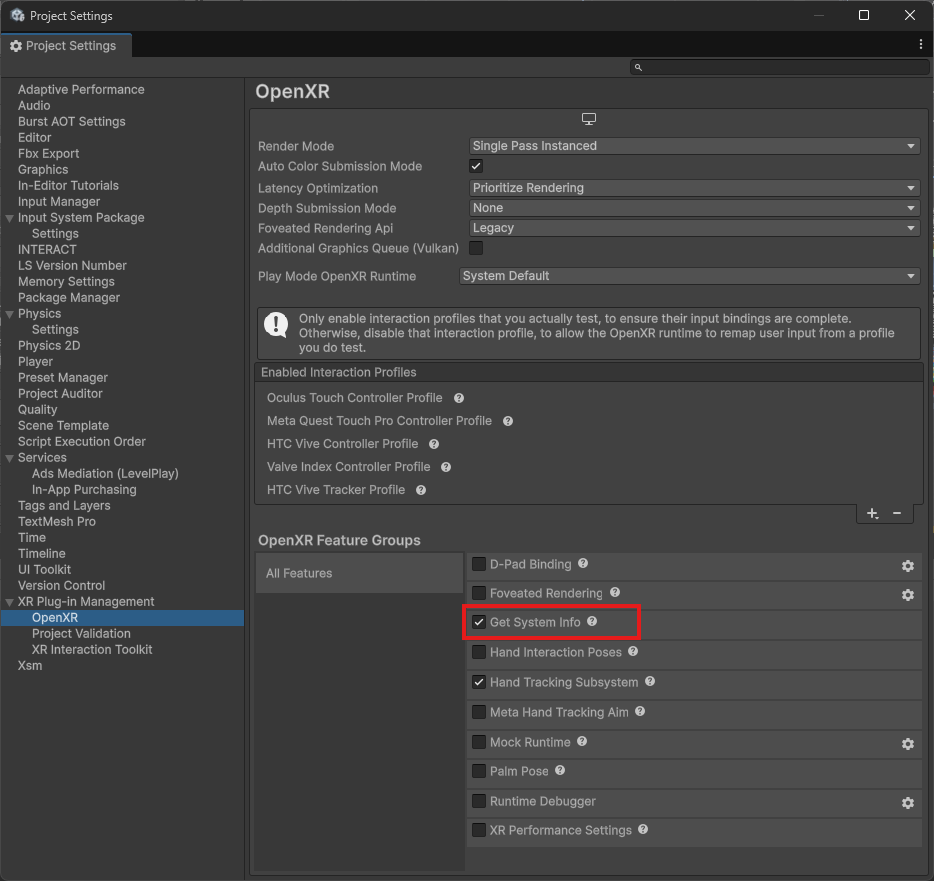
- OpenXR must be enabled in Edit > Project Settings > XR Plug-in Management (see OpenXR).
- The Get System Info OpenXR feature must be enabled so INTERACT can identify the connected headset.
-
If the passthrough button is missing from the VR Menu
- Confirm the Get System Info OpenXR feature is enabled.
- Confirm Allow Passthrough is enabled in Project Settings > INTERACT.
- Confirm your headset is in the list of supported devices.
-
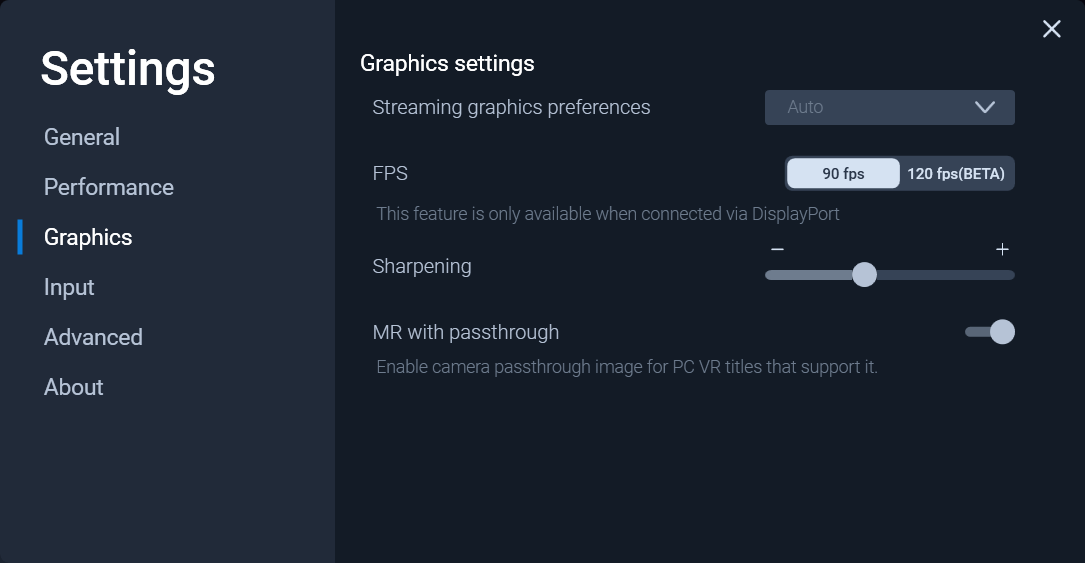
If Passthrough is enabled but I only see a black background, make sure your headset runtime has passthrough enabled at the system level (for example, in the VIVE Streaming or Varjo Base companion apps). INTERACT can only request passthrough compositing, the runtime must be authorized to deliver the camera feed. When using VIVE Streaming, you must enable MR with passthrough.