Collision Monitoring
Use XdeCollisionGroupsMonitor to choose which contacts and interferences are reported during simulation. It reads the collision pairs defined in the Collision Matrix and publishes matching contact data and events for visualization or scripts. Its filter changes what is monitored and reported; it does not disable the physical collision between the objects.

- Tolerance: Contact points with gaps above this value are not published. A lower tolerance can reduce the number of published points, while a higher tolerance can increase it.
- Type: When monitoring both, contact and interference will be evaluated. You can also choose just one if only one is needed.
-
Filter: The groups or bodies being evaluated can be filtered.
[MONITORING_ALL]: With the all mode, all collisions defined in the Collision Matrix are evaluated without additional filtering.[MONITORING_BODY]: With the body mode, you can choose the bodies from which all collisions will be evaluated.[MONITORING_BODY_BODY]: The body pair mode allows you to evaluate only the collision of objects with each other, the ones which you specified in the bodies section.[MONITORING_GROUP]: When selecting the group mode, only the object with the group specified will be evaluated with others.[MONITORING_GROUP_GROUP]: With the group mode, only the collisions of the objects specified will be evaluated when colliding between each other.
Contact Visualization
XdeContactsDisplay displays arrows for the contact points published by XdeCollisionGroupsMonitor.
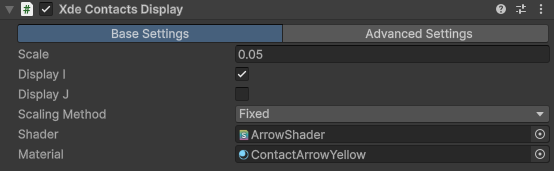
To display contact arrows, set Type to MONITORING_CONTACT, or to MONITORING_BOTH when contacts and interferences are needed. The monitor filter controls which contacts are reported for visualization; it does not change the Collision Matrix or disable the physical collision.
For example, to display collisions between manipulable objects and the environment but not between the Player and those objects, select MONITORING_GROUP_GROUP and add the object/environment pairs to Group Pairs. Leave every pair containing the Player group out. Use MONITORING_BODY_BODY in the same way when the visualization must be limited to specific body pairs. With MONITORING_ALL, arrows are also shown for monitored Player-object contacts.
In XdeContactsDisplay, Display I (Action) and Display J (Reaction) control whether the corresponding action and reaction arrows are displayed on each side of a contact. Scale sets the base arrow size. The Scaling Method controls how that size is applied:
- Fixed displays each published contact at the configured scale, including contacts that are only close to the tolerance distance.
- Force Based scales each arrow according to the contact force. Contacts that contribute little or no force become very small or invisible, making this useful for distinguishing contacts that actually react on an object from proximity-only contact points.
Get Contact Point Positions
Use the monitor API when you need contact positions for a custom visualization or animation. The following script reads the published contact points and instantiates a cube at each contact position.
Add this script to an empty object, assign the [PhysicsManager] to physicsManager, and assign a prefab to cubeInstantiate.
    using System.Collections.Generic;
    using UnityEngine;
    using XdeEngine.Core.Collision.Monitoring;

    public class CollisionContactPoints : MonoBehaviour
    {
        [SerializeField] private GameObject physicsManager;
        [SerializeField] private GameObject cubeInstantiate;

        private XdeCollisionGroupsMonitor _collisionMonitor;
        private XdeContactsDisplay _contactsDisplay;

        private List<Vector3> _listPosition = new List<Vector3>();
        private GameObject cube;

        bool _supportsInstancing = true;

        void Start()
        {
            _supportsInstancing = SystemInfo.supportsInstancing;
            _collisionMonitor = physicsManager.GetComponent<XdeCollisionGroupsMonitor>();
            _contactsDisplay = physicsManager.GetComponent<XdeContactsDisplay>();
        }

        void Update()
        {
            if (_collisionMonitor == null || !_supportsInstancing)
                return;

            xde_types.core.group_contact_events contact_points = _collisionMonitor.ContactPoints;
            if (contact_points == null)
                return;

            List<Vector3> list = _listPosition;
            list.Clear();

            for (int i = 0; i < contact_points.group_pairs.Count; i++)
            {
                xde_types.core.contact_grouppair gpair = contact_points.group_pairs[i];
                for (int j = 0; j < gpair.body_pairs.Count; j++)
                {
                    xde_types.core.contact_bodypair bpair = gpair.body_pairs[j];
                    for (int k = 0; k < bpair.points.Count; k++)
                    {
                        xde_types.core.contact_point point = bpair.points[k];

                        if (point.gap > -_contactsDisplay.tolerance && !(point.gap > _contactsDisplay.tolerance))
                        {
                            list.Add(point.a_i);
                            cube = Instantiate(cubeInstantiate, point.a_i, Quaternion.identity);
                        }
                    }
                }
            }
        }
    }
Detecting Collision Events


Using an XdeContactMonitor component, you can monitor when a collision is happening and use this event in your custom scripts.
You can monitor a specific pair of XdeRigidbody or a pair of XdeLayer. Below a script example to trigger vibration in designated controller when a collision has been detected.
    using UnityEngine;
    using UnityEngine.InputSystem;
    using UnityEngine.XR.OpenXR.Input;

    public class Example_collisions : MonoBehaviour
    {
        public XdeEngine.Core.Collision.Monitoring.XdeContactsMonitor contactMonitor;
        //A XdeContactMonitor component will be needed to monitor when the collision is happening

        [SerializeField]
        InputActionReference m_leftHapticAction;

        [SerializeField]
        InputActionReference m_rightHapticAction;

        [SerializeField]
        private float intensity = 0.1f;

        [SerializeField]
        private float duration = 0.1f;

        private void Start()
        {
            contactMonitor.OnCollisionStart += TriggerHaptic;
        }

        public void TriggerHaptic()
        {
            OpenXRInput.SendHapticImpulse(m_leftHapticAction, intensity, duration, UnityEngine.InputSystem.XR.XRController.leftHand);

            OpenXRInput.SendHapticImpulse(m_rightHapticAction, intensity, duration , UnityEngine.InputSystem.XR.XRController.rightHand);
        }
    }
Don't forget to add the "LefHand/Haptic(Input Action Reference)" in Left Haptic Action, same for the right hand. Help yourself with the picture upper.


Using an XdeInterferenceMonitor component, you can monitor when an interference is happening and use this event in your custom scripts.
You can monitor a specific pair of XdeRigidbody or a pair of XdeLayer. Below a script example to play a sound when an interference has been detected.
    //A XdeInterferenceMonitor component will be needed to monitor when the interference is happening
    public AudioSource audioSource;
    public XdeEngine.Core.Collision.Monitoring.XdeInterferencesMonitor interferenceMonitor;

    private void Start()
    {
        interferenceMonitor.OnInterferenceStart += OnBodyInterferenceEnter;
        interferenceMonitor.OnInterferenceEnd += OnBodyInterferenceExit;
    }

    private void OnBodyInterferenceEnter()
    {
        audioSource.Play();
    }

    private void OnBodyInterferenceExit()
    {
        audioSource.Stop();
    }