Adapt parts hierarchy
Merge Meshes
If you encounter performance issues while playing your simulation (low refresh rate), it may be because your 3D models include too many parts. Even small parts (ex. screws), in a significant number, can have a huge impact on performance requirement. Cleaning your CAD models is therefore a good way to get better performance.
This Merge Meshes feature combines several meshes in one single object.
To use this feature:
-
Select parts you want to merge (Hold Ctrl for selecting multiple objects). You can complete the selection later.
-
From the main menu, go to INTERACT > Graphics > Merge Meshes... (Shift+M) to open the Merge Meshes Together popup.
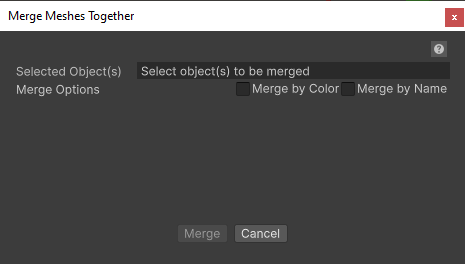
-
You can complete selection.
Example: the 4 separate screws in the image below. -
Select Merge Options (optional):
- No option: All objects are merged in one (see image above).
- Merge by color: All parts that share the same color will be merged together (resulting in one or more meshes, one per color).
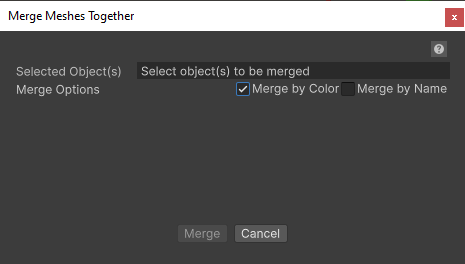
- Merge by name: Parts will be merged according to a specific name pattern (resulting in one mesh). Items that do not match the pattern are not merged and remain unchanged.
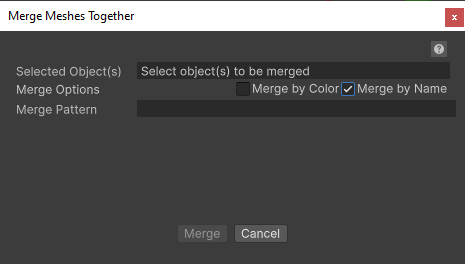
-
Click Merge.
Results:
-
No option:
-
A new GameObject is created.
-
First selected part gives:
-
Its name, followed with the suffix "_Merged".
-
Its position and rotation (scale is preserved from the first selected part)
-
-
-
Merge by color:
- A new Empty GameObject is created, with the merged meshes as children.
- For each color, a merged mesh is created, with the material name as name.
- First selected part gives its position and rotation (scale is preserved from the first selected part).
-
Merge by name:
- A new unique GameObject replaces the matching objects.
- The name corresponds to the pattern followed by the suffix “_BY_NAME”.
- First mesh which corresponds to the pattern gives its position and rotation (scale is preserved from it).

Ex: The 4 screws are combining in one mesh.
Warning
Merge Meshes cannot be reversed (although you can use Unity's undo feature immediately after). Once meshes are merged, physicalized components will be destroyed and the resulting mesh will move as one GameObject. Be careful to avoid merging parts that you will need to separate in the future.
Group Parts
This feature groups the selected parts into one unique Grouped part.
Compared to Merge Parts, this feature is always undoable. However, it does not provide any performance boost related to batching and reducing number of objects.
To use Group Parts:
- Select the parts (two or more) you want to group together (Hold Ctrl for selecting multiple objects).
- From the main menu, select INTERACT > Graphics > Group Parts (Shift+G)
Results:
- Creates an Empty node as parent with all selected parts as children.
-
First selected part gives:
- Its name, followed with the suffix “_Grouped”.
- Its position and rotation (the group container's scale is always (1, 1, 1)).
-
Links between physicalized meshes (Parent Body) are preserved.
Remove hidden parts
Using Pixyz, the feature Remove hidden parts can also be used to delete all parts located inside another.