Troubleshooting
Where to find logs?
You can send us the Unity logs located at %LOCALAPPDATA%/Unity/Editor. You can easily open this folder by selecting Help > INTERACT > Open Logs Folder from the main menu. Those logs contains a lot of useful data that can greatly improve our resolution time for your issue.
It might also be useful to have a look into Unity console window.
Additional logs are also available when clicking on [PhysicsManager] > XdeServer and tick Show consoles checkbox on the Xde Server component.
Contact support
Support is reachable at interact-support@ls-group.fr. Don't forget to detail as much as possible your problem, and include any piece of information that might be useful, like logs and screenshots.
Common Issues
OpenXR Settings
To restore the default INTERACT settings for OpenXR you can use the toolbar menu Help> INTERACT > Install OpenXR Settings:
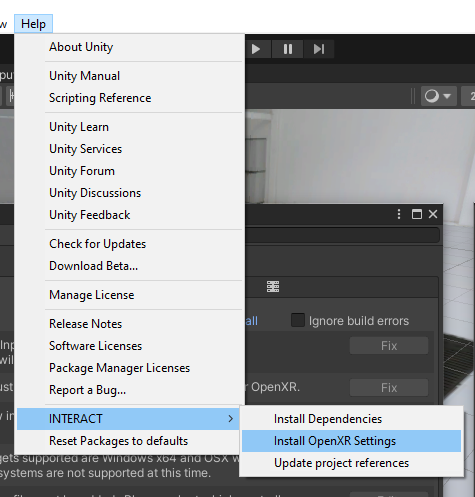
This can be useful if you have encounter trouble during the installation of the package or if you have made mistake while editing the OpenXR settings.
Pixyz Installation
When using top menu INTERACT > Import > CAD Model for the first time, you will be prompted to install the Asset Transformer Toolkit plugin (ex Pixyz Plugin for Unity). Once installed, try again.
If you are seeing the following message in the console with 2022 pixyz version, try to uninstall Pixyz package and re-install it.
Assets\INTERACT\00_CORE\Drivers\LS_Addon\Editor\PiXYZMenu.cs(10,13): error CS0234: The type or namespace name 'Commons' does not exist in the namespace 'Pixyz' (are you missing an assembly reference?)
Check proxy settings
If you see the following error in Interact console, proxy server might be the problem.
ERROR proxy server did not reply
Indeed, Interact uses a client-server architecture which can sometimes causes issues with proxy servers. Try setting the environment variable NO_PROXY to exclude localhost traffic from being redirect to the proxy.
Set the paths of your server project
Physics engine internal server path should be set automatically. However, if you see the message:
Please edit the 'XsmServerSettings' file in asset folder and set the paths of your server project
Try clicking the button Search server dir in assets in the Inspector tab. Then go to File > Save project.
If the issue persists, make sure that you only have one XsmServerSettings.asset file in your project, and that it is located at Assets/Resources/XsmServerSettings.asset.
Hands inside a rigid body when grabbing
Enable collisions between rigid bodies and Player to have a better grasping experience. See Set up collisions.