Record simulations#
To record a simulation in XR Twin, follow these steps:
1. Start simulation#
Begin the simulation process following the steps outlined in the Start Simulation section. Once the simulation is running in Simulation mode, you can start recording the session.
2. Record a simulation#
Click on the "Record" button in the top bar to start recording the simulation. 
This action launch captures the actions and interactions within the virtual environment.
3. Monitor recording#
While the simulation is being recorded, the Record button becomes a "Red" button.

This button displays the time elapsed since recording began (as minutes:seconds). This allows you to monitor the progress and duration of the recording.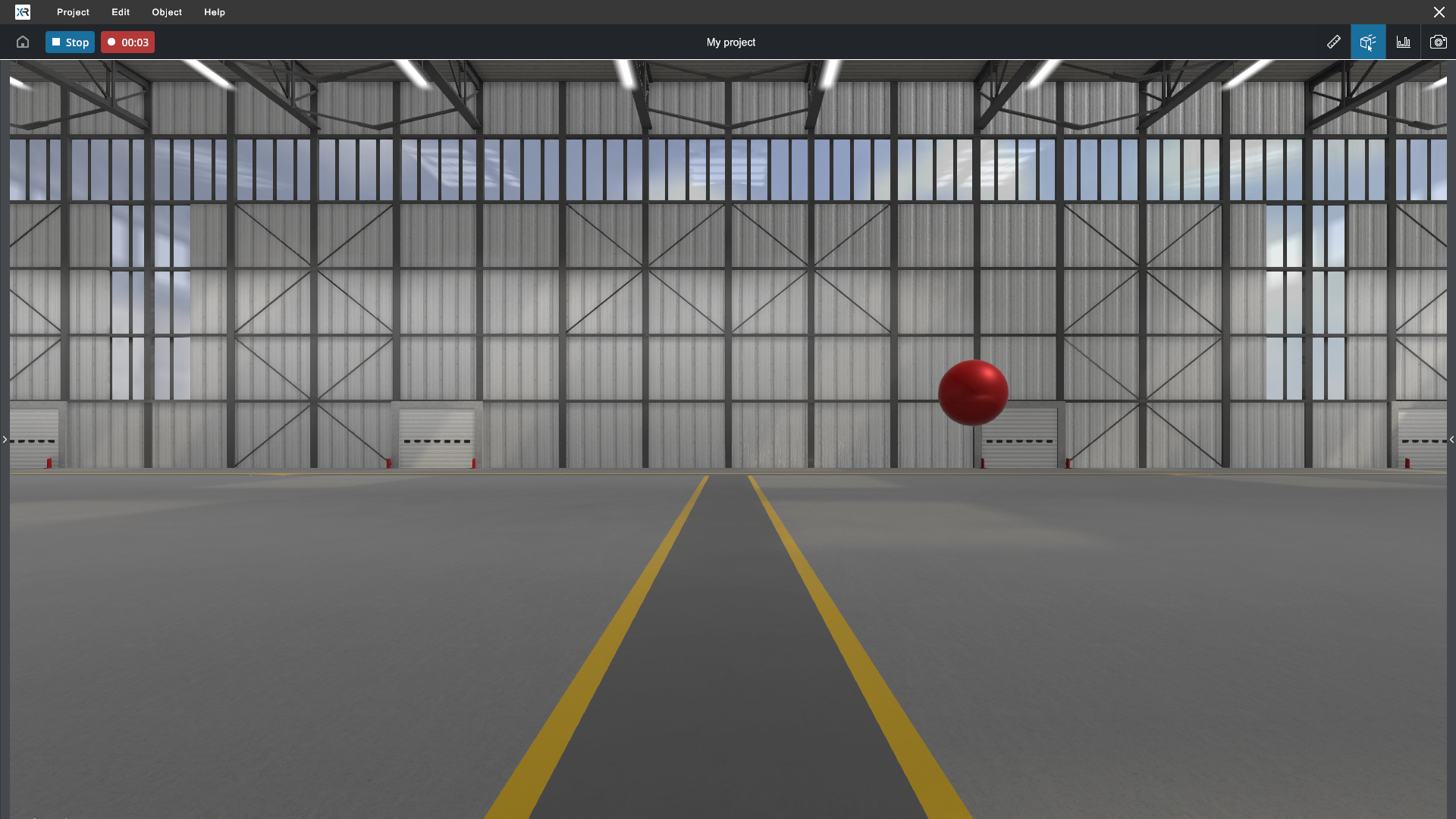
4. Stop recording#
When you're ready to end the recording, click on the "Red" button. This action finalizes the recording process.
Info: Automatic recording
After stopping the recording, XR Twin automatically saves the recording in the project folder.
You can, of course, record several sequences in succession.
Watching your records#
You can access and watch your records later by navigating from the XR Twin Project Launcher panel (or Launcher).
First return to the Launcher:
When you have recorded a simulation return to the Launcher:
- From the Simulation mode, click the Stop button to return in Design mode.
- (Option) From Design mode, save your project if any changes are to be retained. From the main menu, select Project>Save.
- Click the Home button
 to return to the Launcher.
Then watch your records:
To watch your records, from the Launcher, select your project and click Watch.
See Watch your records section.