Hardware: SpaceMouse#
SpaceMouse® was developed by 3Dconnexion to deliver intuitive, precise, advanced 3D navigation to review 3D designs and explore 3D spaces in 3D applications. Find out more on the manufacturer's website 3dconnexion.com/us/.
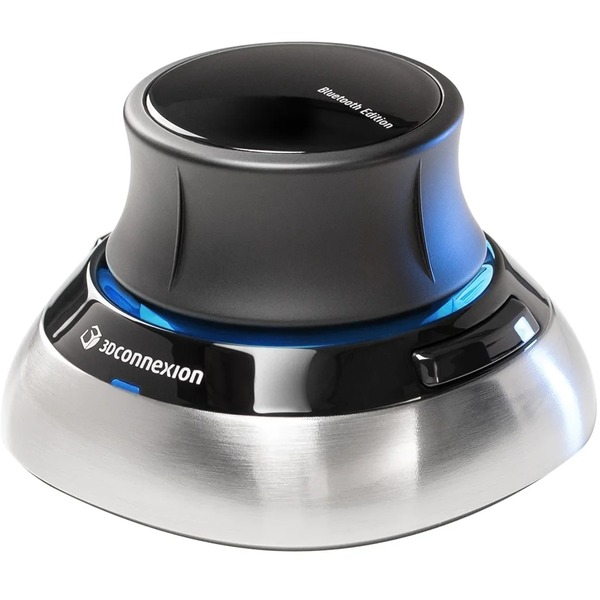
Installing a SpaceMouse#
No special driver is required to use a SpaceMouse® with XR Twin. Just connect the SpaceMouse wireless (dongle or Bluetooth) or wired.
Quick setup & use a SpaceMouse#
To set up a SpaceMouse and move an object in an XR Twin simulation, see SpaceMouse section in the Configure the user chapter.
Troubleshooting#
Object don't move#
If the manipulated object don't move, check some points:
- You can manipulate some node only when XR Twin is in Simulation mode.
- The manipulated node must be present in the Manipulated object slot.
Viewpoint jerks#
If you find that the viewpoint position is affected when you move an object with your SpaceMouse (the viewpoint zoom jerks), then try to follow these steps:
- Open 3Dconnexion application.
- Click Advanced settings.
- Below Zoom direction section, check one of the options (up/down or forward/backward).
- Click Close then Close again to apply your changes.
With this choice, your viewpoint should no longer be affected. If the zoom jerk problem persists, then proceed to the Wrong inputs section below.
Wrong inputs#
XR Twin receives impulses from the global Windows input system. If you find any incorrect entries when using your 3Dconnexion device, try to inactive (rename) temporary the 3Dconnexion configuration folders.
Folders are located here:
C:\Users\USERNAME\AppData\Roaming\3DconnexionShortcut you can enter in explorer path field:%APPDATA%C:\Users\USERNAME\AppData\Local\3Dconnexion)Shortcut you can enter in explorer path field:%LOCALAPPDATA%
Without any 3Dconnexion configuration files, start XR Twin and see if there's any improvement.
If not, see 3Dconnexion app section below or, to restore your configuration folders to their previous state, rename the files with their original names.
See 3dconnexion.com/us/support/faq for instructions.
3Dconnexion app#
The 3Dconnexion application is not necessary for using XR Twin. If incorrect entries persist, try uninstalling the program.