Watch records#
You can access and watch your records at any time by navigating from the XR Twin Project Launcher panel (or Launcher).
Watching your records#
1. Select the record you want to Watch#
- From the Launcher, select your project's thumbnail.
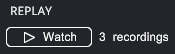
- In the right panel, under the REPLAY section, click the Watch button.
Nota: The REPLAY section is displayed only if at least one recording is available.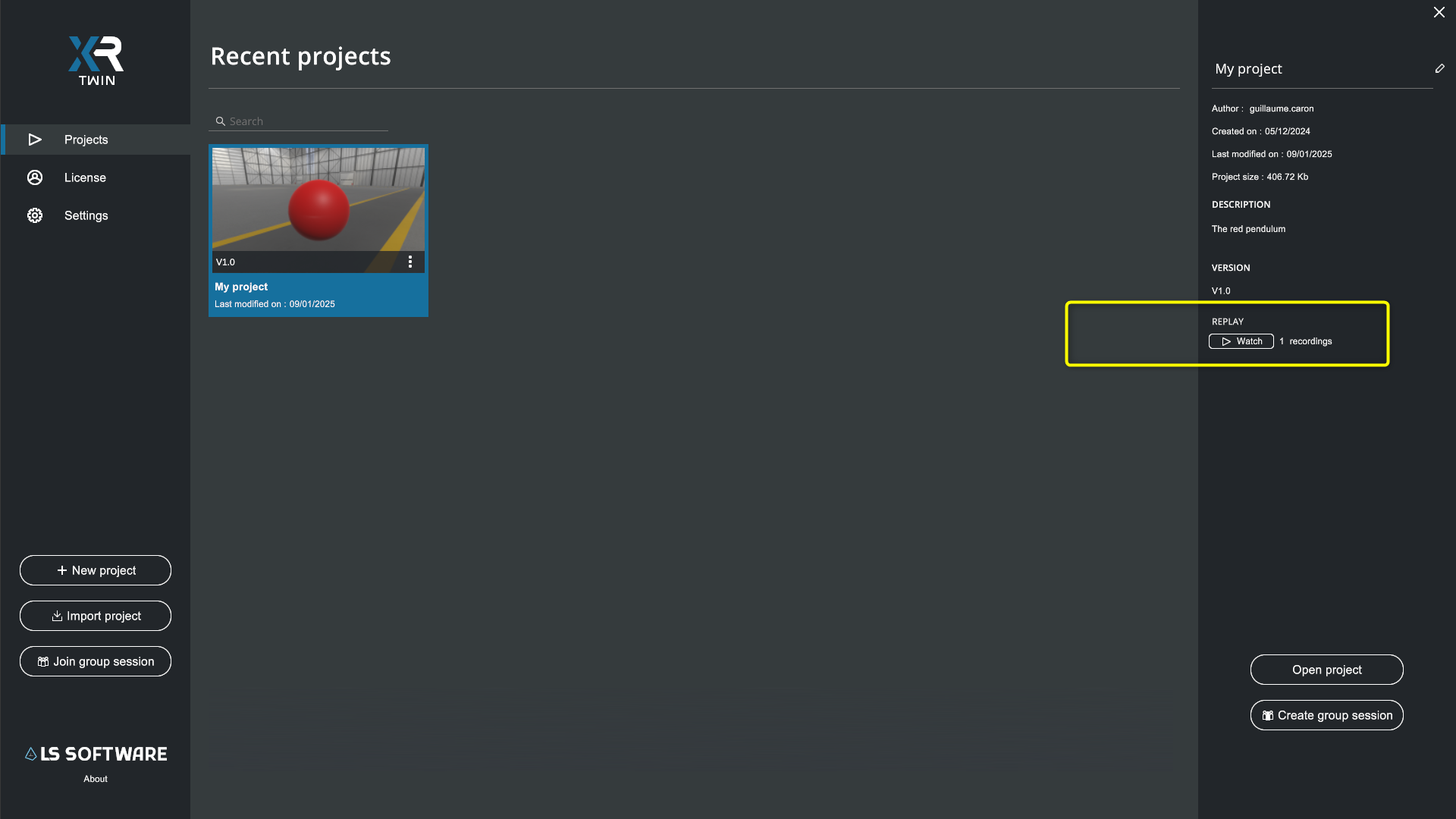
-
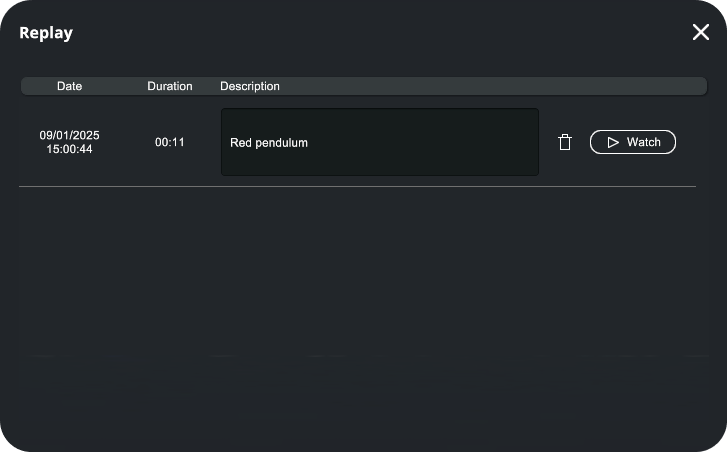
The Replay pop-up opens and displays information for each available recording, including date, duration, and description.
Feel free to use the Description text field to provide a description of your recordings.
-
Choose the record you wish to review and click on the corresponding Watch button to start the Replay mode.
2. Play back in Replay mode#
The full 3D environment of your simulation —including all object movements and your avatar’s actions (recorded in Desktop, VR or Ergo modes)— is captured in the recording.
In Replay mode, you can freely adjust your viewpoint, zoom in on assemblies, or examine the scene from any angle in an ergonomic position. You can play back and analyze the recorded simulation for future reference or sharing with others. You can view it from a desktop third-person perspective (the default) or in a first-person perspective with your VR headset, at true 1:1 scale, for fully immersive analysis and debriefing.
3. What can I do during a playback session ?#
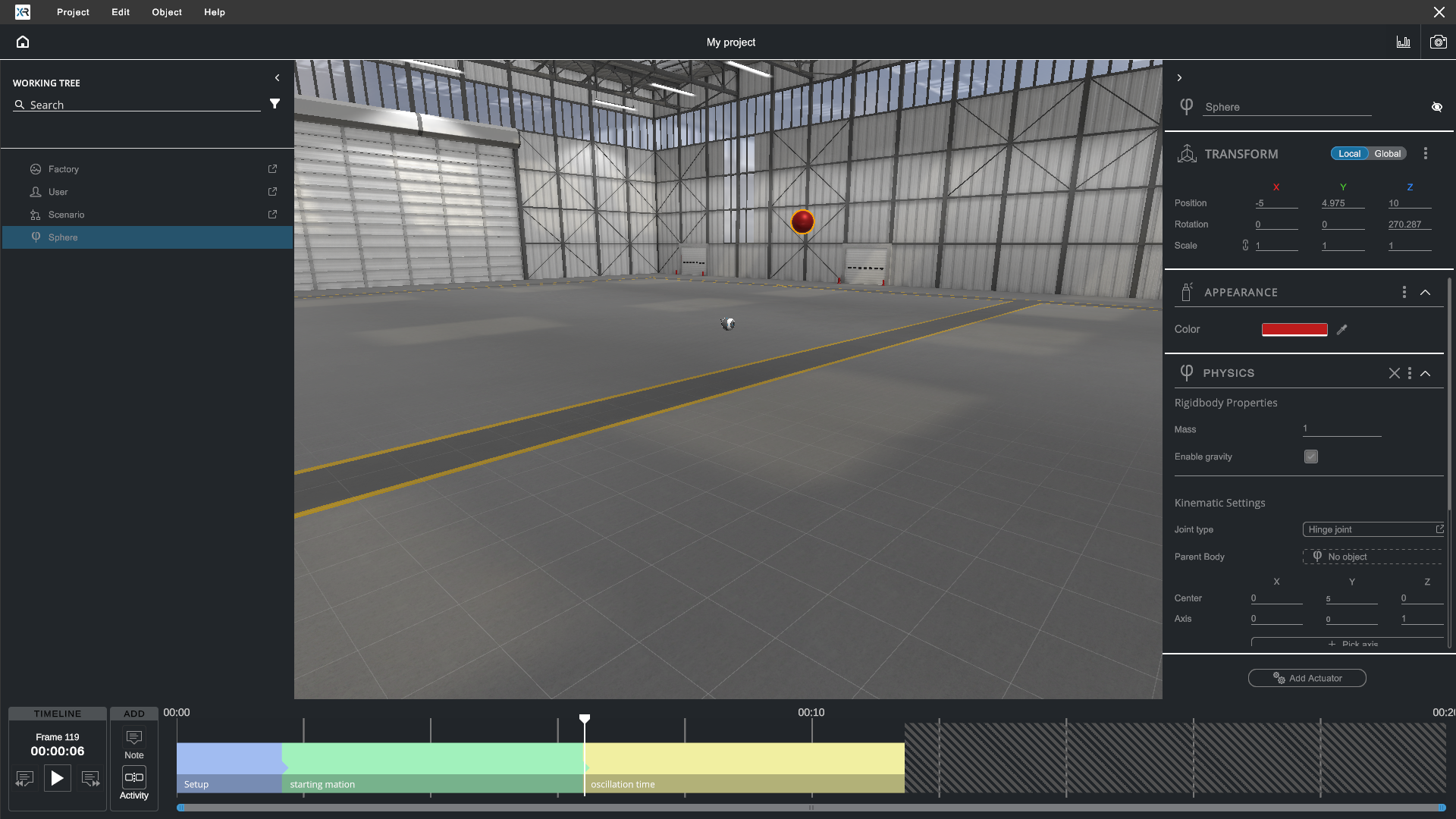
In Replay mode, during playback session you can:
-
Start playback and pause. Click Play/Pause button to manage your playback (bottom left). Recording time is measured in frames and in HH:MM:SS for hours, minutes, seconds.
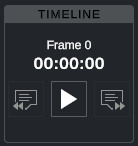
You can move the time pointer with your mouse. Click and drag in the dark top bar of the timeline that contains the time stamps. -
Use 1st/3rd button to switch between Desktop view and VR immersion (connect your headset).
- Click 3rd person view (the default). Turn around you 3D model in Desktop view. Use current navigation and action shortcuts (move camera, double-click to center an object, etc.) See more about shortcuts in the Navigation presets section.
- Click 1st person view and put on your virtual reality headset. Immerse yourself in your recording and observe the movement of objects at a 1:1 scale.
-
Click the Photo button to take screenshots.


A small Screenshot saved pop-up is temporarily displayed in the bottom left-hand corner to confirm that the screenshot has been saved, and to indicate the file name (under the form YYYY-MM-DD-hh-mm-ss.png). Click the Review shortcut to open the destination folder in Windows Explorer. The pop-up closes by itself after a few seconds.
If you are in VR, display the VR Menu and select the Photo tool.

-
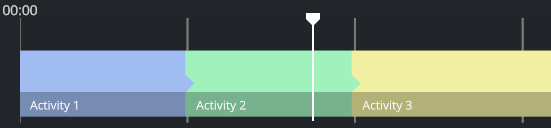
Define activities. Click Activity button to split in the timeline into tasks (e.g. work sequences). You can give them a name.

-
Write notes. Click Note button to add some comments (coming soon).

-
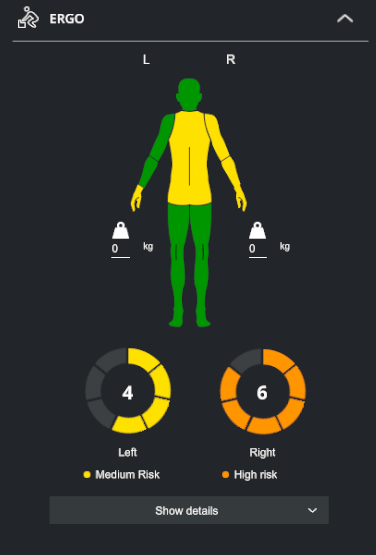
Display ergonomic evaluations of your body capture (LS SUIT required, see Ergonomics). To view ergonomics, select the User (at the left, in the Working Tree panel). At the right, in the Inspector panel, in the ERGO section, global RULA scores are displayed (click Show Details button to display member-by-member quotations). You can indicate the weight carried for each hand (kg).
Restrictions for ergonomics
Ergonomics are only available for VR recording sessions that used the LS Suit for body motion capture. Learn more about ergonomics in the Motion capture and ergonomics section.
4. Save your changes#
If you have made any changes in Replay mode (change environment, create or modify activities), remember to update the recording file regularly. From the main drop down menu, select Project>Save.
5. Quit Replay mode#
When you have finished your session and saved your changes, you can click the Home button  to return to the Launcher.
Safeguard your recording for future use#
Warning: Maintain compatibility
The recordings only contain the movement parameters of the avatar and your objects, not the meshes of the objects themselves. They are closely linked to the content of your project. To ensure compatibility, XR Twin checks the scene before playback. If it detects any changes (for example, a different number of objects), a warning  is displayed in the Replay pop-up window and the recording may become unreadable.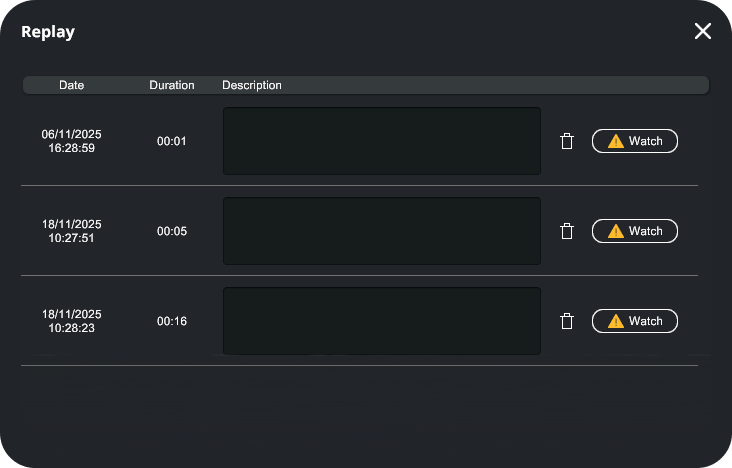
Tip: Duplicate the project
To preserve your recordings, we recommend duplicating your project before making changes.
We’re working on enhancing this feature in future updates.